

Raise a capital request and issue a purchase order
Also known as: PO, purchase order.
Procurement is the buy side of Belrald Assets: justify a purchase, get it approved, collect quotes, issue a purchase order, receive the goods, and let Belrald Assets create the asset for you. Spend is posted to the ledger as you go, so budgets and reports stay honest.
You will use four screens under Procurement: Capex Requests, Purchase Orders, Receiving and Projects.
Raise a capital request
Section titled “Raise a capital request”- Go to Procurement → Capex Requests and select New request.
- Enter the Title.
- Enter the Estimated cost and Currency.
- Write the Business justification — this is what an approver reads.
- Enter the Description.
- Choose the Intended location and the Asset category.
- Attach Supporting files — a specification, a quote, a photo of the failed equipment.
- Select Create. This saves the request as a draft; select Submit on the draft to send it for approval.
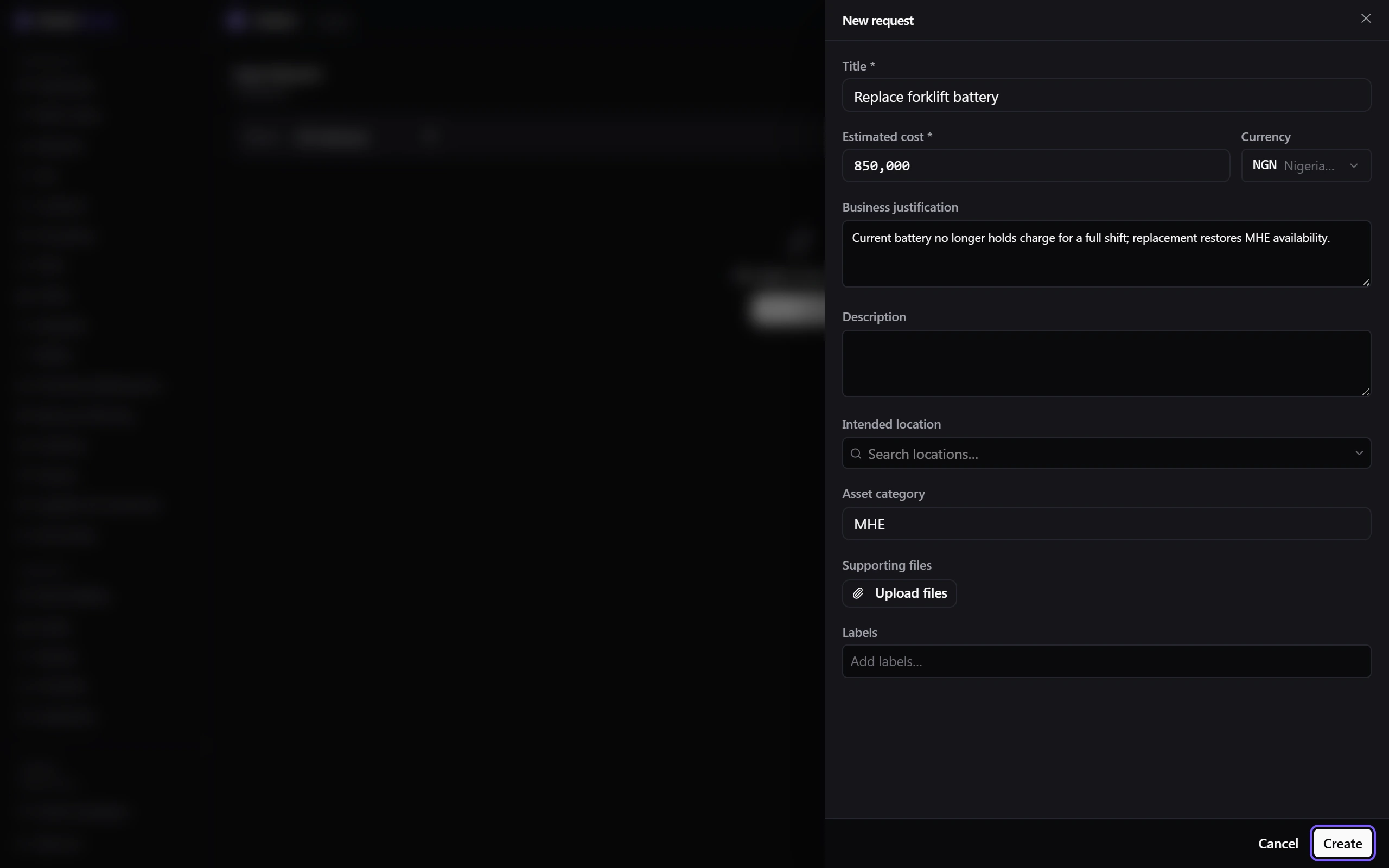
If the estimate is over your capex threshold, the request goes to the Approvals inbox and waits. Below the threshold it is approved automatically.
Collect quotes
Section titled “Collect quotes”Once approved, select Issue RFQ, enter the Scope of work and a Response deadline, and send it to your suppliers. Open the Quotes tab as they arrive and select Accept quote on the one you want. That drafts a purchase order for you.
Issue the purchase order
Section titled “Issue the purchase order”Review the draft, then select Issue PO. The supplier is asked to acknowledge it, and the amount is posted to the ledger as committed spend.
Receive the goods
Section titled “Receive the goods”- Go to Procurement → Receiving and open the purchase order.
- Enter the quantity Received and the Condition.
- Record the Batch number and any Serial numbers.
- Add Photos of what arrived, especially if anything is damaged.
- Select Complete.
The purchase order becomes Partially received or Received, the amount is posted as actual spend, and any asset lines are commissioned into your asset register automatically.
Run a capital project
Section titled “Run a capital project”Use Projects for construction and capital work delivered in stages.
- New project, then add its milestones.
- Complete milestone drafts a payment purchase order for that stage, net of retention.
- Add snag to record defects found at handover.
- Final completion releases the retention you have held back.
A milestone can only be paid once.
Statuses to expect
Section titled “Statuses to expect”- Capital request — Draft → Submitted → Approved or Rejected → Converted to PO (or Withdrawn).
- Purchase order — Draft → Out for signature → Acknowledged → Partially received → Received → Closed (or Cancelled).
- Project — Planning → In progress → Practical completion → Final completion (or Cancelled).
Was this page helpful?
Thanks — your feedback helps us improve these guides.