

Automate actions with rules
An automation rule reacts to something that happens in your workspace and runs one or more actions in response — for example, assign every new high-priority work order to a duty manager, or notify a vendor when their insurance expires.
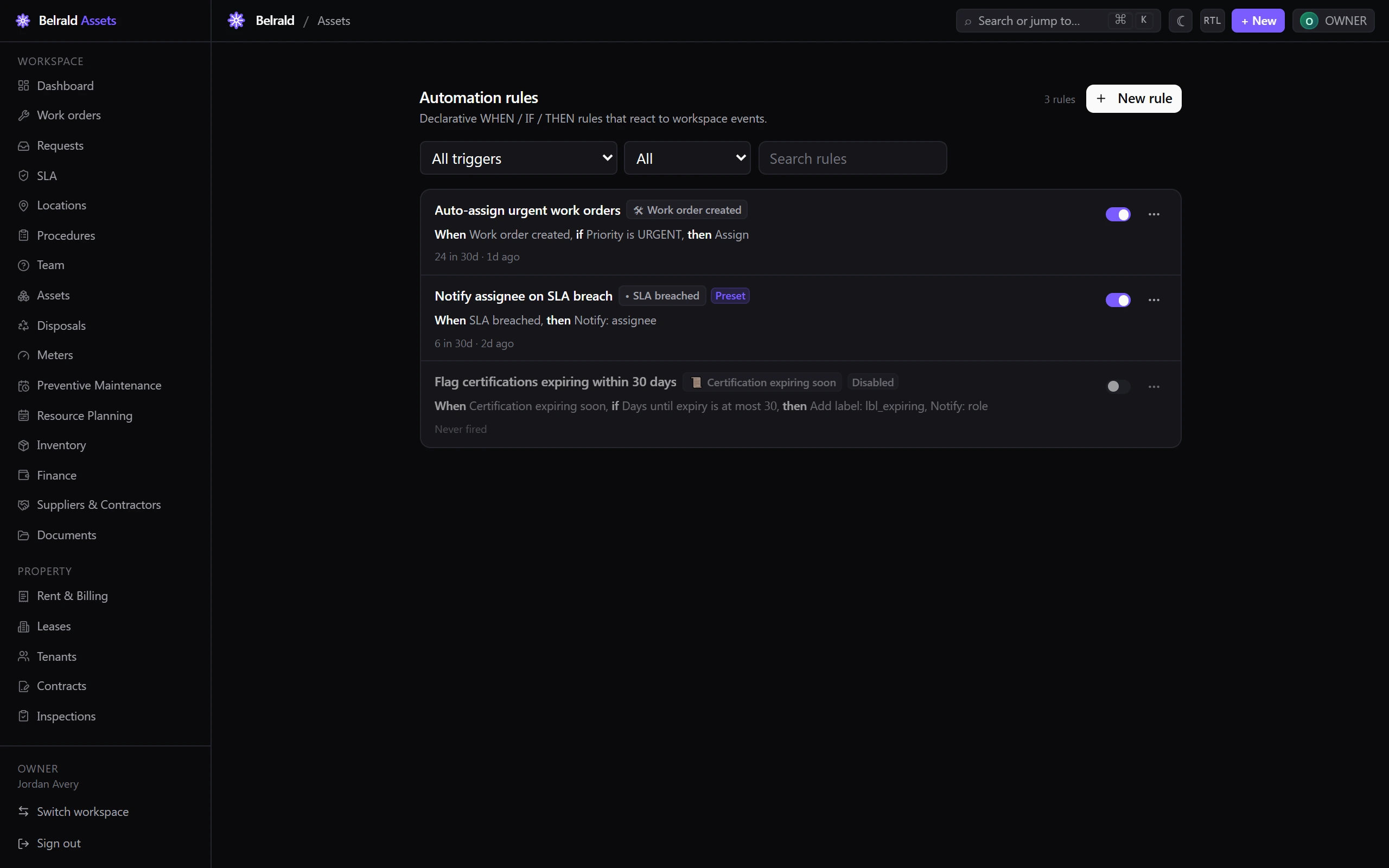
Every rule reads as one sentence: When an event happens, if some conditions match, then do these actions. That summary is shown on each row of the desk and at the bottom of the builder, so you can always see what a rule does at a glance.
Who can manage rules
Section titled “Who can manage rules”Owners and admins can create, edit, test and archive rules. Managers get a read-only desk — they can open rules and view run history but cannot change anything. Technicians, members and viewers do not see automation at all.
Create a rule
Section titled “Create a rule”- Go to Settings → Automation.
- Choose New rule.
- Give it a name and, optionally, a description.
- Pick a trigger under When this happens — see Triggers.
- Add any conditions under If these conditions match. Leave this empty to fire on every matching event.
- Add one or more actions under Do this — see Actions. Actions run top to bottom, in order.
- Optionally open Advanced to set a rate limit or emitted events.
- Save rule.
New rules are enabled by default. Use the switch on each row to turn a rule on or off without deleting it.
Triggers
Section titled “Triggers”A trigger is the event a rule listens for. Triggers are grouped by what they act on:
- Work orders — created, assigned, status changed, resolved, closed, cost logged.
- Maintenance requests — submitted, under review, promoted, rejected, merged.
- Meters — reading recorded, threshold crossed.
- Parts & inventory — below reorder point, received, stockout.
- Assets — status changed, warranty expiring, health changed.
- Certifications — expiring soon, expired.
- Vendors — suspended, insurance expired.
- SLA — breach imminent, breached.
- Approvals — requested, granted, rejected.
- Workflow — a status transition on any record type.
Each rule has exactly one trigger. Changing the trigger clears the conditions, because the fields you can test against come from the trigger.
Conditions
Section titled “Conditions”Conditions narrow down when a rule fires. Each condition is a field, an operator and a value — for example, “Priority is HIGH” or “Cost is over 500,000”. The available fields come from the trigger you chose, and the operators offered depend on the field’s type.
- All conditions must match. Conditions are joined with AND — there is no OR. If you need OR, create a second rule.
- No conditions means the rule fires on every matching event.
Actions
Section titled “Actions”Actions are what the rule does when it fires. A rule needs at least one, and they run in the order listed — reorder or remove them from the action list. The available actions are:
- Assign — to a specific person or to a role.
- Set priority — Low, Medium, High or Urgent.
- Transition status — move the record to a workflow status.
- Add label / Remove label.
- Apply template.
- Request approval — against an approval policy.
- Notify — email, SMS, WhatsApp, in-app or push, to a person, a role, the requester, the assignee or the reporter.
- Comment — add an internal note.
- Create work order — optionally from a template, location or asset.
Test a rule before it goes live
Section titled “Test a rule before it goes live”If your plan includes it, open a rule’s Test panel to dry-run it against a sample event. The test shows whether the conditions matched and which actions would run — no changes are made to any record.
Watch what a rule does
Section titled “Watch what a rule does”Open Runs on any rule to see its run history for the last 90 days. Each run shows an outcome:
- Matched / Completed — the rule fired and its actions ran.
- Conditions not met — the event arrived but the conditions did not match.
- Rate limited — dropped because the rule was over its per-hour limit.
- Loop guard — dropped because a cascade of rules ran too deep.
- Error — an action failed.
Within a run, each action reports Done, Skipped or Failed, so you can see exactly why a rule did or did not do what you expected.
Manage rules
Section titled “Manage rules”- Filter the desk by trigger, by enabled or disabled status, or search by name.
- Duplicate a rule to start a new one from an existing setup.
- Archive a rule from its menu. It stops firing immediately. Preset rules can be archived too, and can be re-seeded later.
- Rate limit a busy rule from Advanced to cap how many times it fires per hour; 0 means no limit.
Was this page helpful?
Thanks — your feedback helps us improve these guides.