

Connect an accounting system
Also known as: accounting, integrations, QuickBooks, Xero.
Accounting integrations connect Belrald Assets to your accounting software so expenses, invoices, and payments export automatically instead of being keyed in twice.
Everything lives in Settings → Integrations, across two tabs: Connections and Sync Inbox. Owners and admins can connect providers and edit mappings; only owners can disconnect. Managers get read-only access and see a Read-only access chip next to the page heading.
Choose a provider
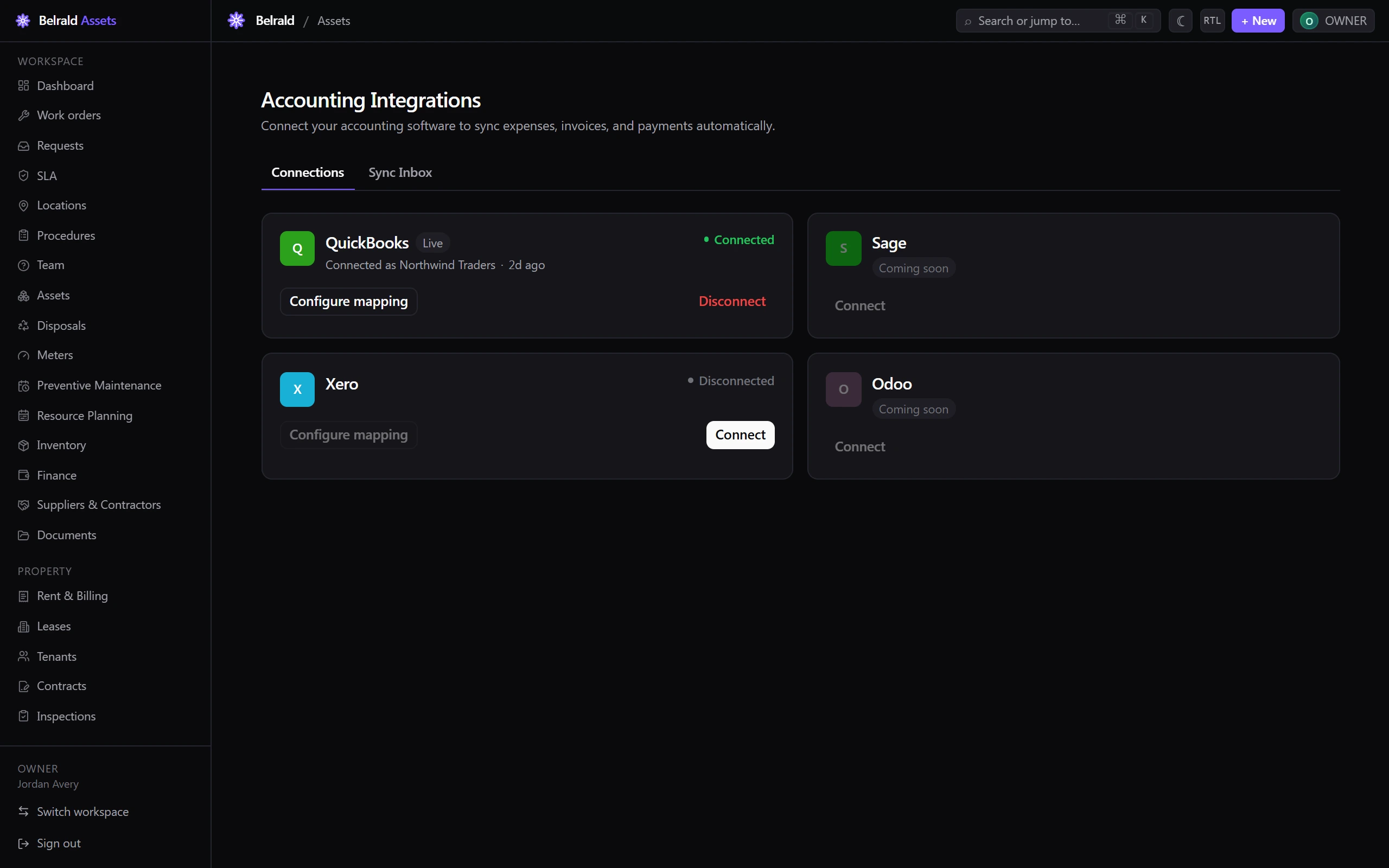
Section titled “Choose a provider”Four providers appear on the Connections tab as cards:
- QuickBooks and Xero are live and can be connected today.
- Sage and Odoo show a Coming soon chip with a disabled Connect button — they are placeholders for now.
Each card shows a status badge — Connected, Disconnected, Error, or Needs reauth — and, once connected, the company it is connected as, its environment, and when it last synced.
Connect a provider
Section titled “Connect a provider”- On a live provider’s card, select Connect.
- In the Connect {provider} dialog, choose an environment:
- Sandbox (safe for testing) — the default. Connects to your provider’s test company without touching your live books.
- Live (production data) — connects to your real accounting data.
- Select Continue to {provider}. You are sent to the provider to sign in and authorise Belrald Assets.
- After you approve, you return to the Connections tab and a toast confirms the connection succeeded or failed.
A connected card shows Connected as {company}, a Sandbox or Live badge, and its last sync time.
Map your accounts
Section titled “Map your accounts”Mapping tells Belrald Assets which account in your provider each kind of record should land in. Open it from a connected provider’s Configure mapping button (available once the provider is connected).
- Select Refresh accounts to pull your provider’s chart of accounts. If no accounts are loaded yet, the sheet prompts you to do this first.
- Under Default accounts, pick the fallback account for each kind of record:
- Default expense account
- Default revenue account
- Default receipt / deposit account
- Default tax code
- Under Category rules, map your internal categories to specific accounts. Choose a Dimension (Cost category, Revenue line kind, Receipt method, or Tax), enter the Source key that matches your data, and pick the Account. Select Add rule for each mapping you need.
- Select Save mapping.
A rule wins over the matching default; anything without a rule falls back to the default account you set.
Track exports in the Sync Inbox
Section titled “Track exports in the Sync Inbox”Open the Sync Inbox tab to see every record Belrald Assets has pushed to your provider. Records appear after the nightly export runs (01:00 UTC).
Filter by Status and Provider. Each row shows the provider, operation (Expense, Invoice, Receipt, or Bill), source record, reference, status, and last attempt. Status can be:
- Synced — exported. A View in {provider} link opens the record in your accounting software.
- Pending — queued, not yet exported.
- Failed — the export errored. Owners and admins get a Retry button.
- Skipped — deliberately not exported, with a short reason chip.
To export on demand instead of waiting for the nightly run, select Run export, pick a live provider (QuickBooks or Xero), and confirm. Unsynced expenses, invoices, and payments are queued; records already synced are not re-exported.
Reconnect or disconnect
Section titled “Reconnect or disconnect”If a card shows Needs reauth, the connection’s access has expired — select Reconnect on its banner to restore nightly sync. A card in Error state has been paused after repeated failures; Retry connection re-enables it.
To remove a connection, select Disconnect (owners only) and confirm.
Was this page helpful?
Thanks — your feedback helps us improve these guides.