

SLA policies and compliance
Also known as: SLA, service level agreement, escalation, compliance.
A service-level agreement (SLA) sets a clock on how fast work must be responded to and resolved. Belrald Assets attaches that clock automatically, counts down against your targets, escalates when a deadline is missed, and rolls the outcome up into a compliance report.
Every role can read SLA data. Only owners and administrators can create or edit the policies that drive it.
How SLA tracking works
Section titled “How SLA tracking works”A few ideas explain everything the SLA screens show:
- Policies set the targets. Each policy covers Work orders or Requests, and lists a Time to respond and Time to resolve for each priority.
- Scope decides which policy applies. A policy is Global, tied to a Location, or tied to a status Category. The most specific match wins — a location policy beats a global one.
- A clock attaches when tracked work starts. It freezes a snapshot of the policy at that moment, so later edits to the policy never move a deadline that is already running.
- Business hours and holiday calendars pause the clock outside working time, so a target of “4 hours” means four working hours, not wall-clock hours.
- Escalation fires after a deadline is missed, notifying the roles and people you name.
- Compliance counts clocks that have closed as Met or Breached inside a window.
Open the SLA admin
Section titled “Open the SLA admin”- In the sidebar, go to Settings and select SLA.
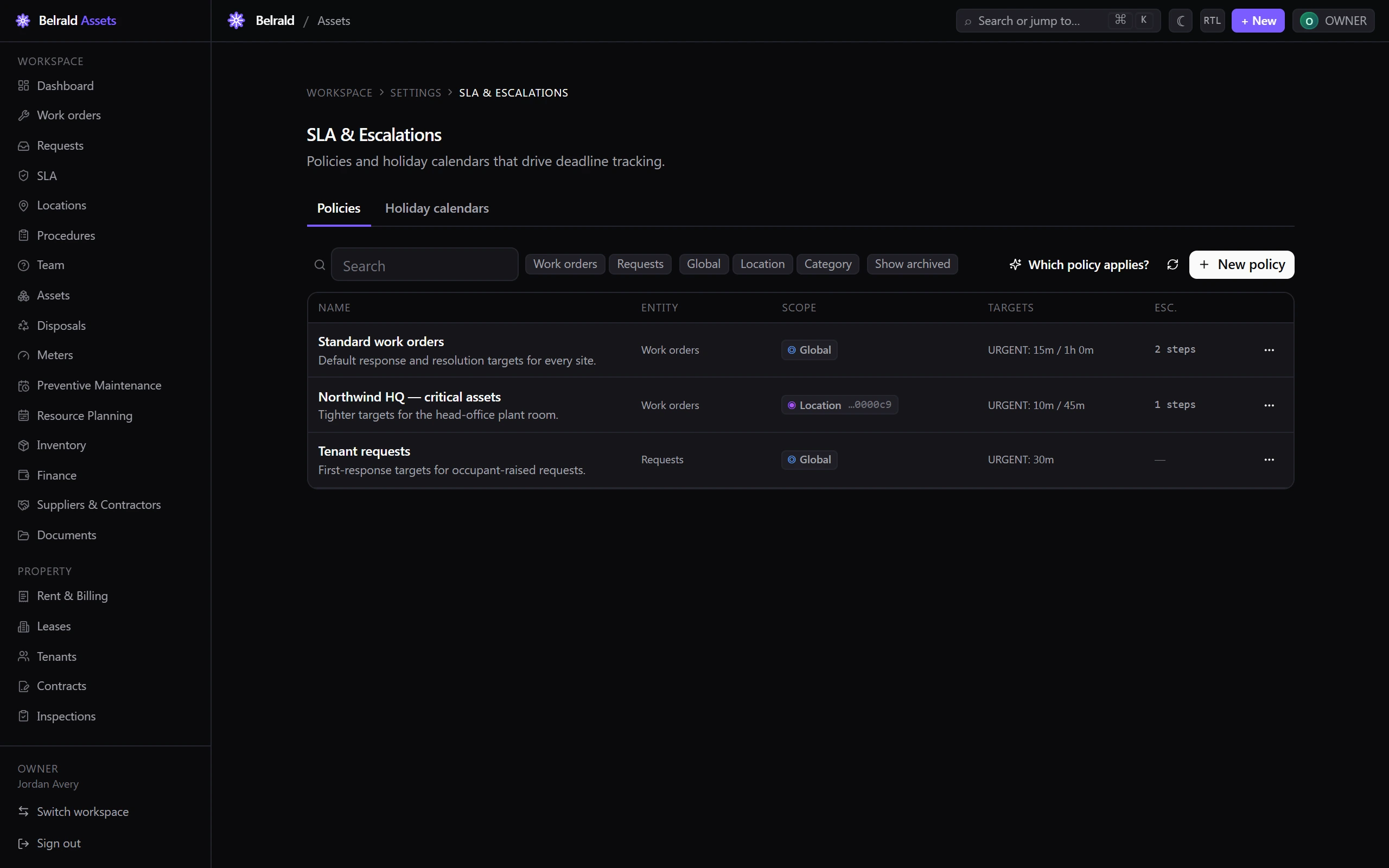
- The admin opens on the Policies tab. A second tab, Holiday calendars, holds the calendars that policies reuse.
- The policies table lists each policy’s Name, Entity, Scope, Targets, and how many escalation steps it has. Use the search box and the Work orders / Requests and scope chips to filter, or Show archived to include policies that are no longer matching new work.
Create an SLA policy
Section titled “Create an SLA policy”- On the Policies tab, select New policy.
- Under 1. Identity & scope, give the policy a Name, an optional Description, and pick the Entity type — Work orders or Requests. Entity type is fixed once the policy is created.
- Set the Scope. Choose Global for a workspace-wide default, or Location / Category to target a specific site or status category. Category scope is only valid for work orders.
- Under 2. Priority targets, set the Time to respond and Time to resolve for each priority. Resolution must be greater than or equal to response.
- Under 3. Escalation chain, add steps if you want breaches to page someone. Each step fires After a number of minutes past due and can Notify roles and Notify people. Leave the chain empty to record breaches without paging anyone.
- Optionally open 4. Business hours and 5. Lifecycle categories (advanced) to override working hours or the statuses that start, pause, and stop the clock. Leave them untouched to inherit the defaults.
- Select Save.
Check which policy applies
Section titled “Check which policy applies”Before you rely on a policy, preview which one a piece of work would match.
- On the Policies tab, select Which policy applies?.
- Pick the Entity type, a Location, a Status category (work orders only), and a Priority.
- Select Resolve. Belrald Assets shows the matching policy, the scope it matched at, and its targets for that priority — or tells you that no policy matches, in which case the work would have no SLA.
Holiday calendars
Section titled “Holiday calendars”The Holiday calendars tab holds the calendars that policies reference so that clocks don’t count down on public holidays.
- Select New calendar to add one. Give it a Name and an optional IANA Timezone — it falls back to the location or account timezone when blank.
- Add each holiday as a one-off date (
YYYY-MM-DD) or a recurring date (MM-DD). - A policy that references a deleted calendar falls back to the account default.
See the SLA clock on a work order
Section titled “See the SLA clock on a work order”Open any tracked work order or maintenance request to see its SLA clock panel. It shows:
- An overall state chip — On track, At risk, Breached, Met, or Paused.
- A First response countdown, and a Resolution countdown for work orders. Requests track first response only.
- Which escalation steps have already been sent.
Owners and administrators can select Recompute to re-resolve the policy and re-freeze the snapshot — useful after correcting a policy. This can move a live deadline, so it asks for confirmation first.
Review SLA compliance
Section titled “Review SLA compliance”- In the sidebar, select SLA to open the SLA compliance report.
- Set the Entity (Work orders or Requests), the grouping (By policy, By location, or By month), a Date range, and an optional Priority.
- The header shows the overall Compliance percentage with a count of Met, Breached, and total clocks. The table below breaks the same figures down by the grouping you chose.
- Select CSV to export the current view.
Was this page helpful?
Thanks — your feedback helps us improve these guides.