

Plan and run an internal audit
Internal Audit runs the ISO 9.2 audit cycle: plan an annual programme for a
standard, schedule and conduct audits against it, record findings that raise
non-conformities where they need to, and close each audit with a conclusion.
Every audit gets a reference like AUD-0001 and carries its scope, plan,
findings and conclusion with it.
Find it under Governance → Internal Audit. The desk has three tabs — Programmes, Audits and Reports.
Plan a programme
Section titled “Plan a programme”A programme is your annual internal-audit plan for one standard.
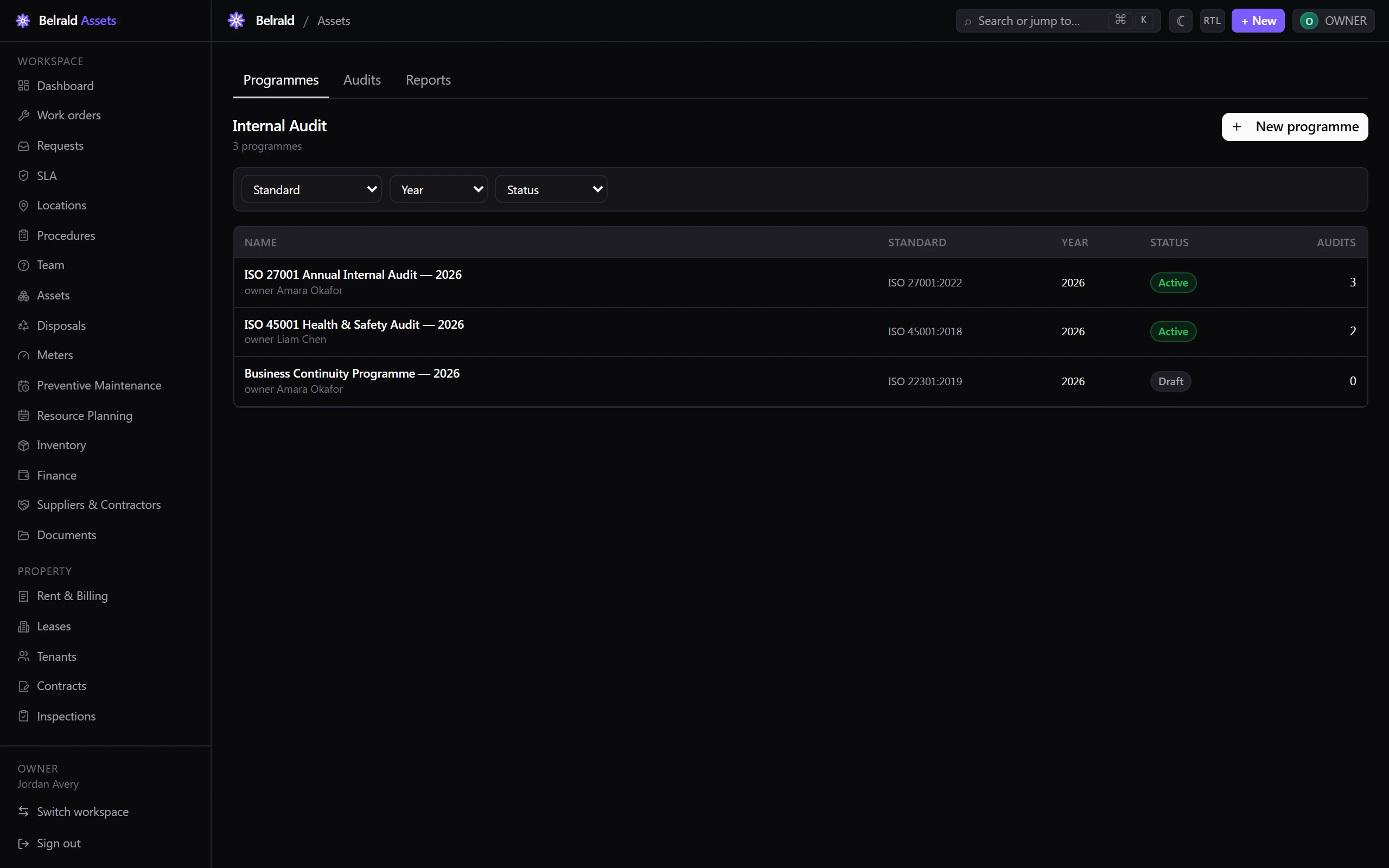
- On Programmes, select New programme.
- Enter the Name — for example, ISO 27001 Annual Internal Audit — 2026.
- Choose the Standard — ISO 27001:2022, ISO 45001:2018, ISO 22301:2019, All standards or Custom.
- Set the Year.
- Assign an Owner from your team.
- Add Objectives — one line each, up to 20.
- Save. New programmes start in Draft; set the status to Active to schedule audits against it, and Closed when the year’s work is done.
From a programme you can Schedule audit to open the audit form with the programme already linked. The scheduled-audits roster on the programme shows every audit booked against it.
Schedule an audit
Section titled “Schedule an audit”- On Audits, select New audit (or Schedule audit from a programme).
- Choose the Audit type — Internal, Supplier, Pre-certification, Surveillance, Recertification, Penetration test or ASV scan. The type is fixed once the audit is created.
- Choose the Standard — ISO 27001:2022, ISO 45001:2018, ISO 22301:2019, SOC 2 (2017) or PCI DSS v4.
- Link a Programme if this audit belongs to one.
- Set Scheduled for and name the Lead auditor — both are required.
- Add Co-auditors and Auditees, and set the Opening meeting.
- Under Scope, add the Locations, Module refs and Control refs the audit covers. Under Criteria, add Control refs and Legal requirements.
- Build the Audit plan — a day-by-day breakdown of date, area and auditors.
- Save.
A penetration test also needs a pen-test scope: a Methodology — Black box, Grey box, White box or Red team — and a scope narrative.
An ASV scan always uses PCI DSS v4 and needs its full scan block: vendor, initiated and completed times, a result (Pass, Fail or Pass with exceptions), whether a rescan is required, and the scan report file.
Conduct the audit
Section titled “Conduct the audit”Open the audit and select Start conduct. This moves it from Scheduled to In progress and stamps the opening meeting — the audit must have a scheduled date first.
Once findings exist, the audit sits at Findings raised. Use Advance to move it on to Follow-up while corrective work is tracked.
Record findings
Section titled “Record findings”Add findings from the audit’s Findings section. Each finding has a type, grouped into three families:
- Non-conformities — Major non-conformity, Minor non-conformity.
- Vulnerabilities — Critical, High, Medium or Low vulnerability.
- Other — Observation, Opportunity for improvement, Positive finding, Informational.
For each finding, give a Description and the Evidence that supports it — both are required. You can also link a control ref and a legal requirement. Vulnerability findings additionally require a CVSS score between 0 and 10, and take an optional CVE ID.
Close the audit
Section titled “Close the audit”Select Close audit, then:
- Choose a Conclusion — Certified recommended, Satisfactory, Minor NCs issued, Major NCs issued, Not recommended or Critical findings open. It must be consistent with the findings raised.
- Write a Summary of the outcome, scope covered and key findings.
- Attach the Report file if you have one.
Closing stamps the closing meeting and finalises the record. You can’t close while any major finding still lacks a linked non-conformity — link one to each from the findings section first.
Statuses to expect
Section titled “Statuses to expect”Scheduled → In progress → Findings raised → Follow-up → Closed. The lifecycle stepper on each audit shows where it stands.
Only a Scheduled audit that hasn’t been conducted can be deleted. A programme can only be deleted once all its open audits are closed or removed.
Report on the desk
Section titled “Report on the desk”Reports breaks audits down by status, type or standard, charts findings by type, and shows closure stats — total audits, how many are closed, how many carried findings, and the closure rate. Filter by a date range. Export the register itself from Audits with Export CSV or Export PDF.
Was this page helpful?
Thanks — your feedback helps us improve these guides.