

Raise and resolve a non-conformity
The non-conformity register records findings — where something failed to meet a
standard, procedure or requirement — surfaced by audits, inspections, incidents
and reviews. Each finding gets a reference like NCR-0001 and carries its
root-cause analysis, corrective actions and effectiveness check with it.
Find it under Governance → Non-conformities.
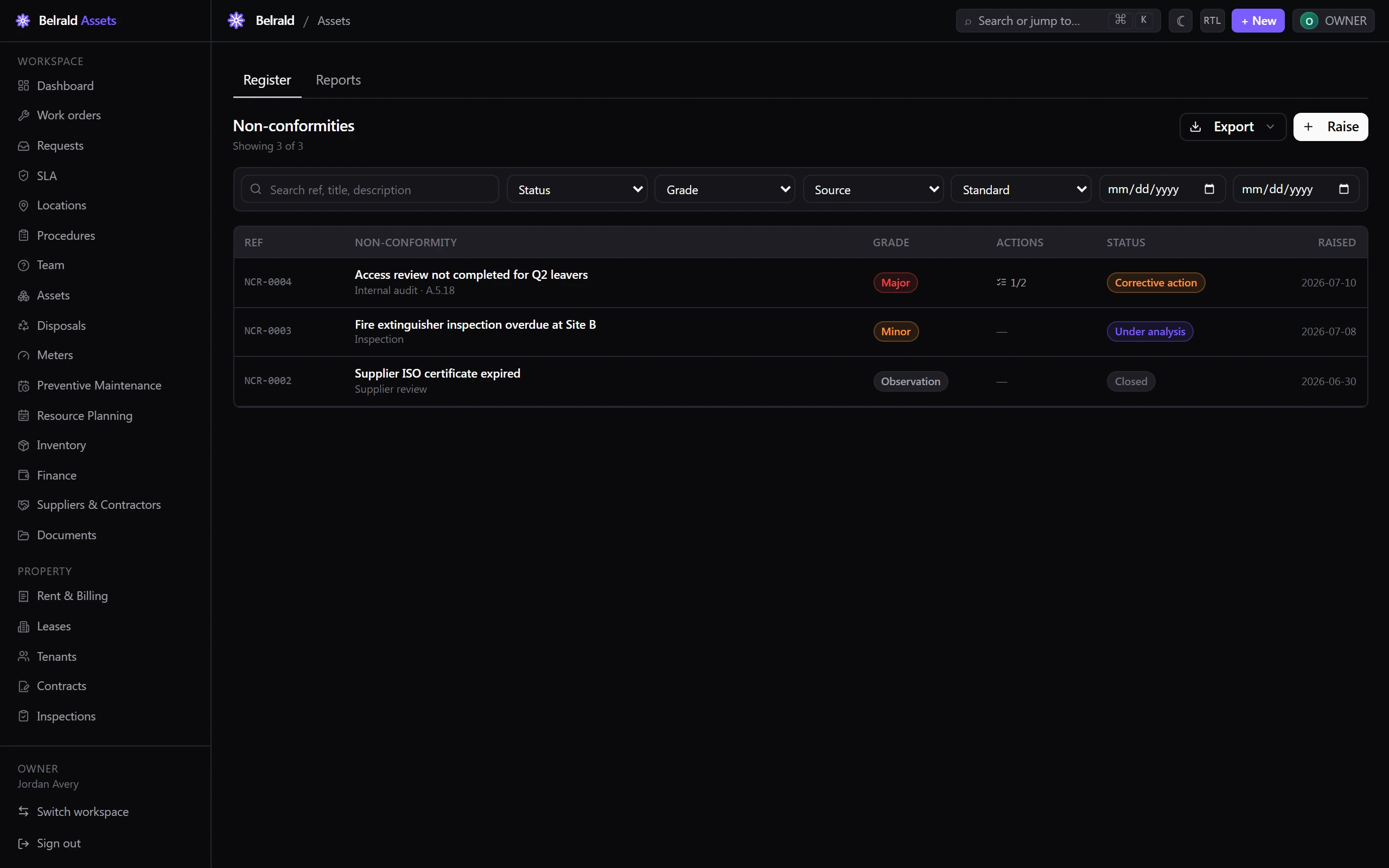
Raise a non-conformity
Section titled “Raise a non-conformity”- Go to Non-conformities and select Raise.
- Enter the Title and a Description of what was found and why it’s a non-conformity.
- Choose the Source — Internal audit, External audit, Certification audit, Inspection, Incident, Supplier review, Management review, Customer complaint or Self-identified.
- For an audit source, choose the Standard — ISO/IEC 27001:2022, ISO 45001:2018, ISO 22301:2019 or PCI-DSS v4.0.
- Add a Control reference if the finding cites a clause, such as
A.8.24. - Choose the Grade — Major, Minor or Observation.
- Set the Owner — leave it empty and it defaults to you.
- Save with Raise.
Investigate the root cause
Section titled “Investigate the root cause”- Open the non-conformity and go to Root cause analysis.
- Choose the Methodology — 5 Whys, Fishbone, 8D or Narrative.
- Write the Root cause — the underlying reason the finding occurred.
- Add any Contributing factors — up to 20.
- Save with Save root cause.
Recording the root cause on a freshly-raised finding moves it to Under analysis. You can edit the analysis later.
Track corrective actions
Section titled “Track corrective actions”Add a corrective action with a Description, the person it’s Assigned to and a Due date that is today or later. Adding the first one moves the finding to Corrective action.
Each action runs Open → In progress → Completed → Verified, and flips to Overdue once its due date passes without being resolved. Cancel action retires one that no longer applies. An action counts as resolved once it is Completed, Verified or Cancelled, and the panel header tracks how many of the total are resolved.
Verify effectiveness
Section titled “Verify effectiveness”Once every corrective action is resolved, verify that the fix actually held.
- Go to Effectiveness verification.
- Choose the Result — Effective, Partially effective or Ineffective.
- Record the Evidence that confirms it.
- Save with Record verification.
A verdict of Effective clears the finding to close. Partially effective or Ineffective loops it back for another round of corrective action — it can’t be closed until effectiveness is confirmed.
An effectiveness review falls due 30 days after the last corrective action is resolved; the Review due sort brings the ones waiting on you to the top.
Close it out
Section titled “Close it out”Move the finding to Closed and give a Reason — closing always requires one. An Observation closes freely. A Major or Minor finding needs every corrective action resolved and effectiveness verified as Effective first; until then the Close button explains what’s outstanding.
A closed finding can be reopened back to Corrective action if new information arrives.
Linked records
Section titled “Linked records”A non-conformity raised automatically from an Incident, Audit, Management review or Supplier review carries a link back to its source, shown under Linked records. These deep-links open once that module ships.
Statuses to expect
Section titled “Statuses to expect”Raised → Under analysis → Corrective action → Effectiveness review → Closed. An observation that needs no formal follow-up can close without the middle steps.
Report on the register
Section titled “Report on the register”Reports covers open findings grouped by grade, source, standard or owner, your closure rate, the average time to close by grade, and recurring root causes — over a 30, 90 or 365-day window. Export the register itself with Export CSV or Export PDF.
Was this page helpful?
Thanks — your feedback helps us improve these guides.