

AI features
AI in Belrald Assets is a shared layer other parts of the product call — it is not a separate product you visit. Today the reachable surface is the AI Console, where admins review what AI proposed, together with one consumer feature that calls the AI layer: maintenance-request triage, which appears on a request wherever the AI substrate is turned on.
Built, but not yet on any screen
Section titled “Built, but not yet on any screen”Three AI controls exist in the product but are not placed on a screen, so there is nothing to open today no matter how your workspace is configured:
- Ask a question about this dashboard… When it ships, its answers will be drawn from the data on the dashboard you are viewing, and it will need dashboard read access.
- Summarise on a work order.
- AI capture on an asset, which drafts an asset from a photo or a spec PDF.
Review AI decisions
Section titled “Review AI decisions”Everything AI produces is logged as a decision for a person to check, rather than applied silently.
- Go to Settings → AI Console.
- Open Decisions.
- Review each one and accept, reject, or edit it before accepting.
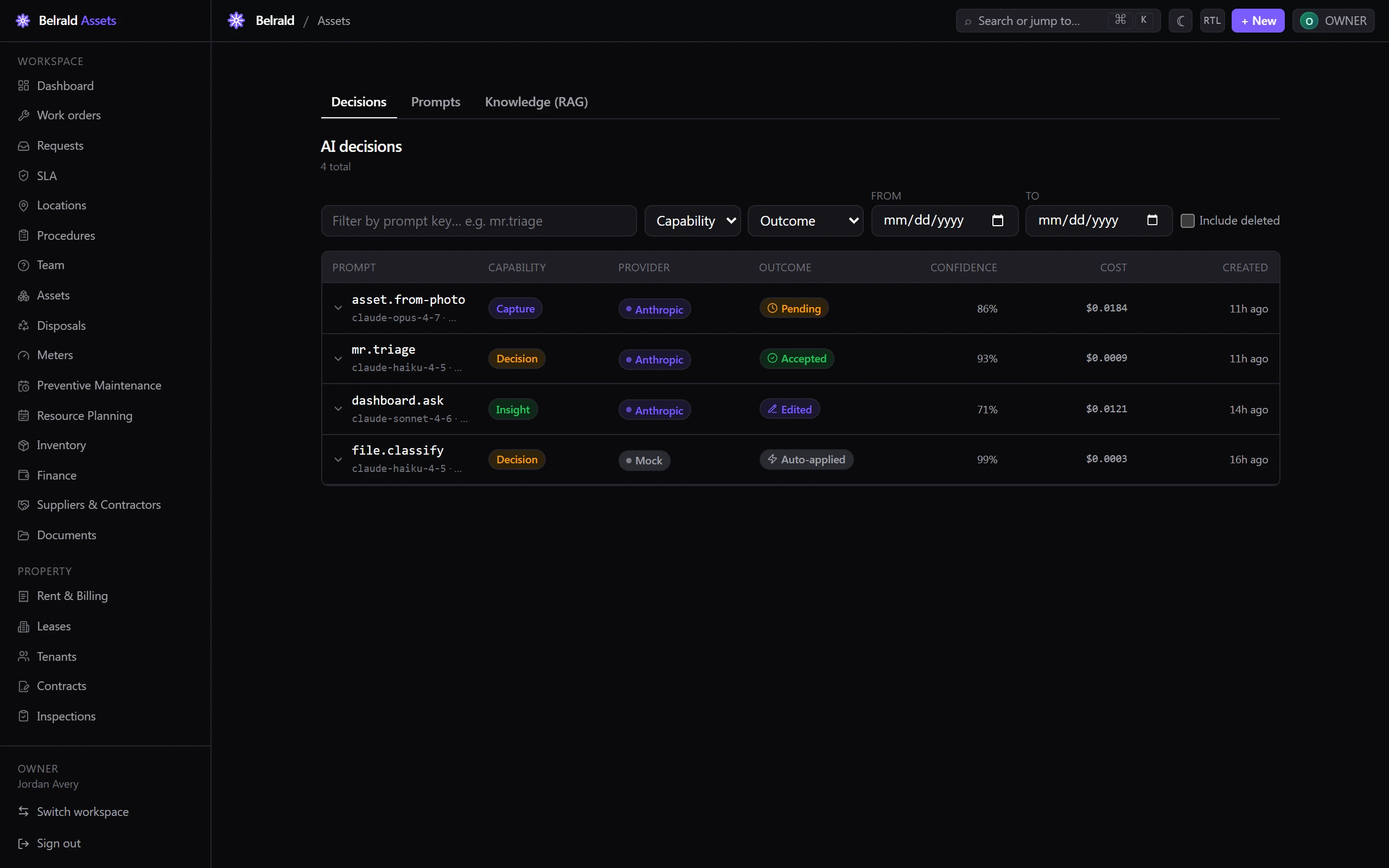
Outcomes show as Pending, Accepted, Rejected, Edited or Auto-applied. Records that AI created are marked, and each links back to the decision it came from — so you can always trace where a value originated.
Manage prompts and knowledge
Section titled “Manage prompts and knowledge”The AI Console has two more tabs for admins:
- Prompts — the registered capabilities and whether each is enabled.
- Knowledge (RAG) — the indexed material AI draws on when answering.
Each tab needs its own permission. The console tells you which permission is missing rather than hiding the tab.
Not available yet
Section titled “Not available yet”Some AI capabilities appear in the product but are not usable yet, and return a “coming soon” response:
- Voice capture of work orders.
- Reading a supplier quote from a PDF and comparing quotes in procurement.
- Qualifying a supplier from their documents.
Recommending a disposal route behaves differently — it answers, but always with an empty suggestion, so it never blocks the disposal you are working on.
Incident AI — drafting a near-miss, summarising an incident, and proposing root causes — is on the roadmap but not yet built: it does not appear in the product at all, not even as a coming-soon control.
Treat all of these as roadmap, not as features to build a process around.
Was this page helpful?
Thanks — your feedback helps us improve these guides.