

Raise and govern a change request
Management of Change governs deliberate changes to your assets, locations,
procedures and suppliers — so nothing significant happens without an impact
assessment, the right approval, and a review afterwards. Each change request
gets a reference like MOC-0001 and carries its impact assessment, approval and
post-change review with it.
Find it under Governance → Change Requests.
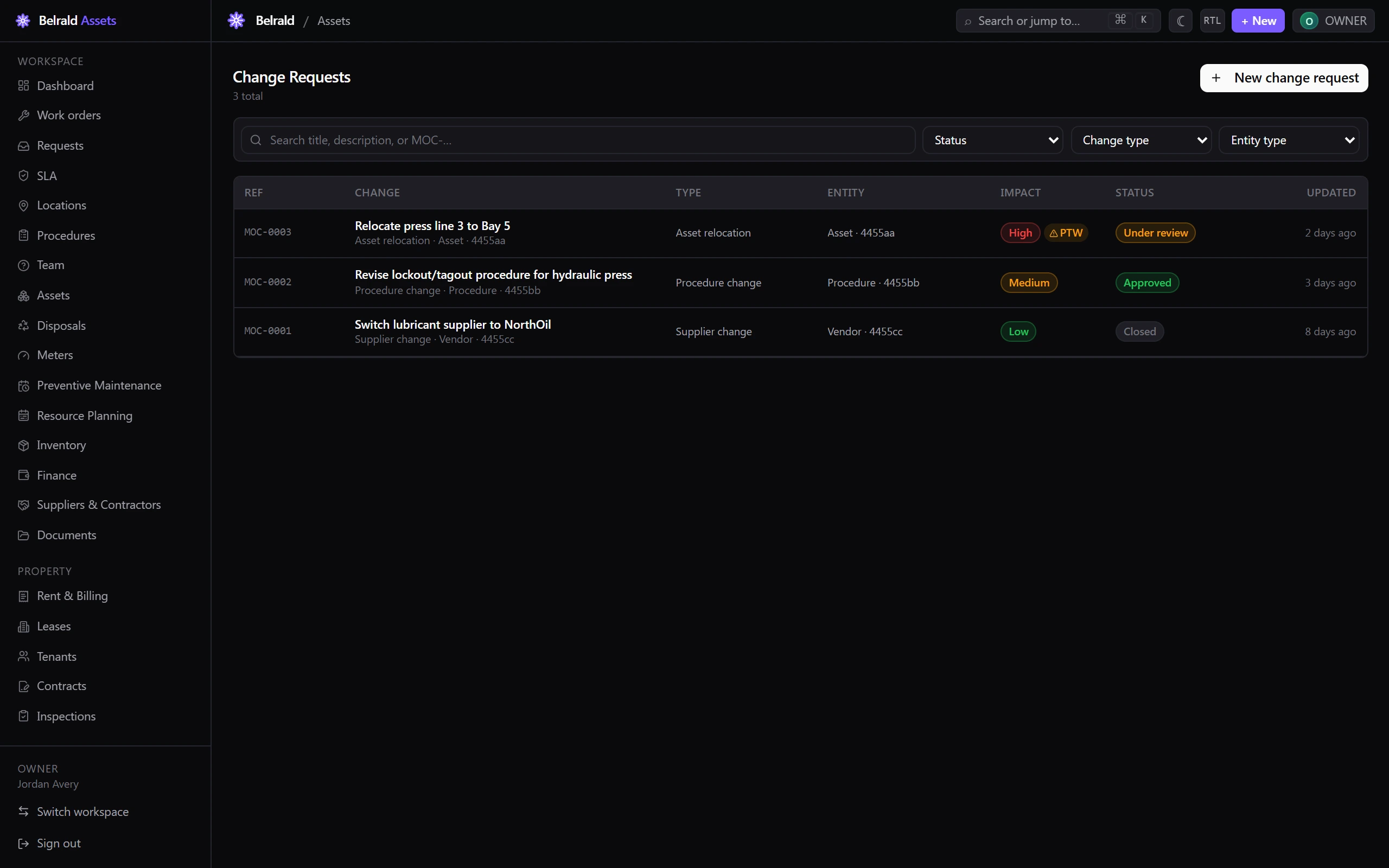
Raise a change request
Section titled “Raise a change request”- Go to Change Requests and select New change request.
- Enter the Title and a Description of what is changing and why.
- Choose the Change type — Asset modification, Asset relocation, Asset decommission, Procedure change, Process change, Organisational change, Supplier change or Other.
- Choose the Entity type — Asset, Location, Procedure, Vendor or Legal requirement — and pick the specific entity it affects.
- Optionally set a Proposed date for when you plan to make the change.
- Complete the Impact assessment — this is required.
- Save the change request. It starts as a Draft.
Assess the impact
Section titled “Assess the impact”Every change is scored on three axes, each None, Low, Medium or High:
- Safety — harm to people.
- Security — information or physical security.
- Continuity — disruption to operations.
The overall impact is the highest of the three. It decides the approval route: high or medium impact routes to approval before implementation, while low or none self-approves.
Add Impact detail and link any related risks (RSK-…) to justify the
scores. Tick Requires a new procedure if the change means a procedure has to
be written or revised.
Submit for review
Section titled “Submit for review”From a draft, select Submit for review. You can add a note for the reviewer.
- High or medium impact is routed to an approver, and the change moves to Under review.
- Low or none impact self-approves and moves straight to Approved — no separate approver is needed.
While the change is under review, the Approval status panel shows whether approval is pending, granted or rejected; open it in Approvals to act on it. A rejected change returns to Draft so you can revise and resubmit.
Implement the change
Section titled “Implement the change”- Once the change is Approved, select Start implementation.
- Record the Planned date, optionally link a procedure, and — if the change affects a safety-critical asset — select the authorised permit to work. Implementation cannot start without the permit when one is required.
- The change moves to In implementation.
- When the work is done, select Complete implementation. A post-change review becomes due in 14 days and the change moves to Post-review.
Review after the change
Section titled “Review after the change”Record the post-change review with an Outcome:
- Successful — the change achieved its intended outcome.
- Partially successful — it partly worked; follow-up may be needed.
- Unsuccessful — rolled back — the change was reversed.
Add your observations. A rollback should be followed by a corrective action.
Close it out
Section titled “Close it out”Select Close to record the change as complete and reviewed. You must record a post-change review before you can close — closing is blocked until then. The change stays in the register as a historical record.
Cancel or delete
Section titled “Cancel or delete”Cancel stops a change that is no longer going ahead. It is allowed while the change is in draft, under review or approved — but not once implementation has started. Give a reason; the change stays in the register as a cancelled record.
Delete soft-deletes the change and removes it from the register, but keeps it for audit. Only draft or cancelled changes can be deleted.
Statuses to expect
Section titled “Statuses to expect”Draft → Under review → Approved → In implementation → Post-review → Closed. A low- or no-impact change self-approves, so it moves from Under review straight to Approved without a separate approver. Cancelled is a terminal off-ramp available before implementation begins.
Was this page helpful?
Thanks — your feedback helps us improve these guides.