

Invoice rent and record payments
Rent & Billing turns an active lease into invoices, collects against them, and posts the result to your ledger. Most of it runs on its own — you step in to issue one-off charges, record payments taken outside the platform, and deal with what’s late.
Check the rent schedule
Section titled “Check the rent schedule”- In the sidebar, select Rent & Billing, then Schedules.
- Find the lease. A schedule appears automatically when a lease is activated, and closes when the lease ends.
- Use Pause to stop invoices generating for a period, and Resume to start them again.
Amounts are read from the lease each time an invoice is raised, not copied into the schedule. That’s why a mid-tenancy rent review lands on the next invoice without you editing anything.
Raise a one-off invoice
Section titled “Raise a one-off invoice”- Select Invoices, then Draft invoice.
- Choose the Lease and the billing Period.
- Add the line items — Rent, Service or One-off charges.
- Select Issue invoice.
Use Void to cancel an invoice that should never have existed, and Write off for one you’ve given up collecting. Both leave the invoice on the record with an audit trail; neither deletes it.
Record a payment you took yourself
Section titled “Record a payment you took yourself”Tenants paying through the portal are reconciled automatically — their provider tells us, and the invoice updates itself. Record a payment by hand only when the money arrived outside the platform:
- Select Payments, then Record payment.
- Enter the Amount and pick the Method. Only Bank transfer, Cash and Manual can be recorded by hand — provider payments such as M-Pesa or Paystack come in through the provider, not through this form. Set Received on, and add a Provider reference if you have one.
- Allocate the payment across the tenant’s outstanding invoices. One payment can settle several invoices; the allocations must add up to the payment amount.
- Select Record payment.
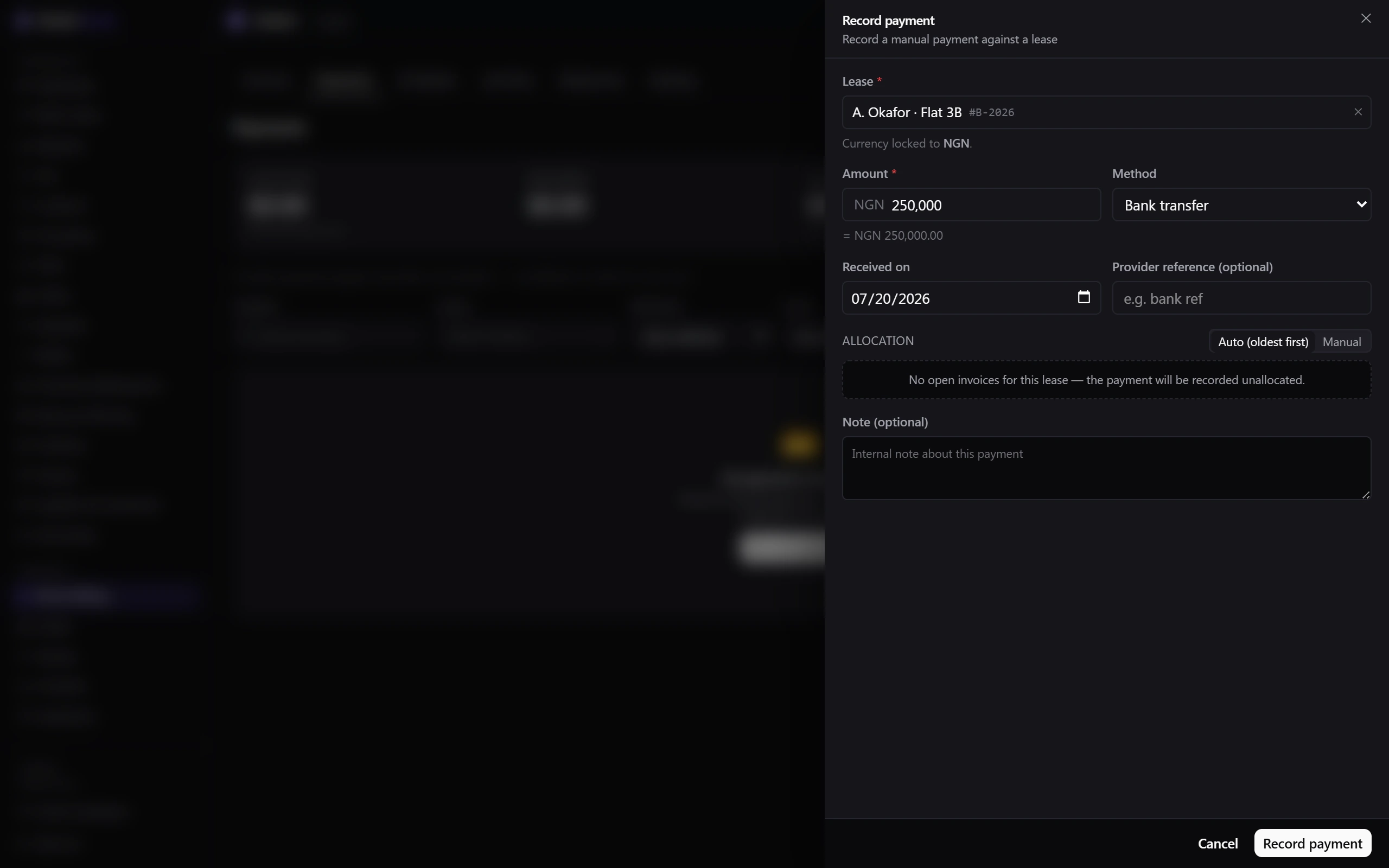
The invoice moves to Partially paid or Paid, and the payment posts to the ledger.
Chase what’s late
Section titled “Chase what’s late”An unpaid invoice becomes Overdue after its due date and moves through the dunning stages — Current → Reminder → Second notice → Final demand → Collections — with the tenant notified at each step. Late fees are applied by the late-fee policy attached to the account or the lease.
Filter the invoice list by Dunning to see who is at which stage.
Pull a statement
Section titled “Pull a statement”- Select Statements.
- Choose the lease and a date range of 366 days or less.
- Read the statement on screen — opening balance, every charge and payment in the period, and the closing balance.
Was this page helpful?
Thanks — your feedback helps us improve these guides.