

Track software and licences
Software & License Management keeps one authorised-software catalogue, records where each title is installed across your assets, and tracks the seat position, renewals and compliance state of every title. It produces the SOC 2 CC6.1 evidence auditors ask for — the authorised-software inventory, seat position and prohibited-software detection in one place.
Find it under Governance → Software. The desk has three tabs: Catalogue, Installations and Compliance.
Build the software catalogue
Section titled “Build the software catalogue”The catalogue is your register of software titles. A handful of starter titles seed automatically on a new account; add your own from Catalogue → Add title.
- Enter the Name and Publisher — both are required.
- Add a Version if it matters (optional).
- Choose the Licence model — Per seat, Per device, Concurrent, Subscription, Perpetual, Open source or Freeware.
- Set the Authorisation status (see below).
- Enter Purchased seats if the title is licensed by seat.
- Add an Owner, a Contract, Linked assets, an Expires at date, a Renewal reminder and Labels as needed.
- Save the title.
Only Per seat, Per device and Subscription titles are seat-bounded — the others show Not seat-limited for this model and never render a seat bar.
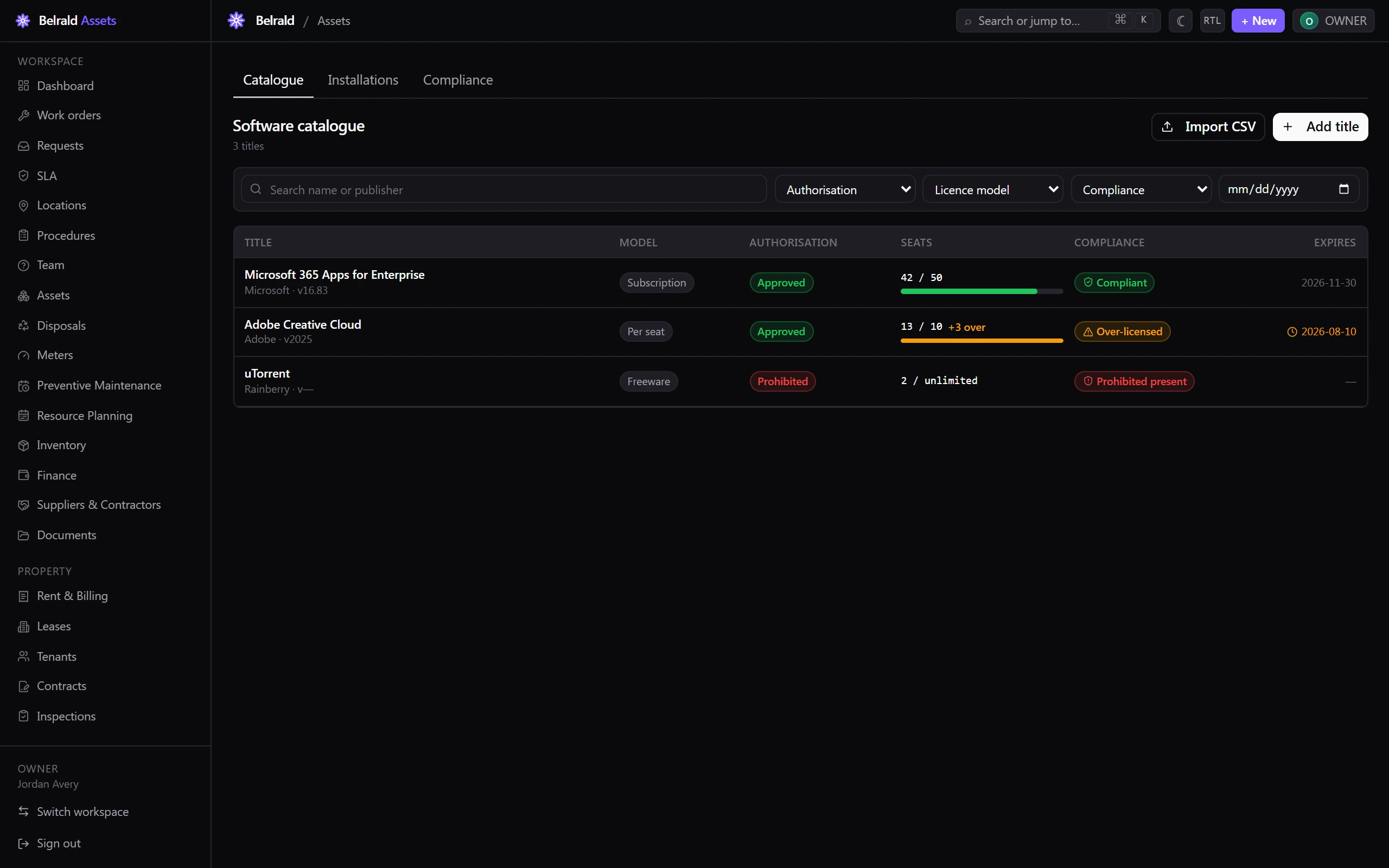
The catalogue list shows each title with its model, authorisation, seat position, compliance state and expiry. An expiry date turns amber inside its renewal window and red once it has passed.
Authorise a title
Section titled “Authorise a title”Every title carries an Authorisation status:
- Approved — cleared for use.
- Approved (restricted) — allowed under conditions.
- Pending review — not yet decided. This is the default for a new title.
- Prohibited — must not be installed.
Approving, restricting or prohibiting a title is a privileged action — only an owner or admin can set those. Anyone who can create or edit a title can leave it Pending review.
Read the seat position
Section titled “Read the seat position”Each title shows its seats as used / purchased — for example 42 / 50. A seat-bounded title with more installs than seats is flagged Over-licensed and shows a +N over badge; a title with no seat cap reads N / unlimited and shows no bar. The count carries a reconciled … · recomputed nightly stamp so you know how fresh it is.
Record installations
Section titled “Record installations”The Installations tab is the inventory of where software actually runs. Nothing is seeded here — add installs one at a time, or import them.
- Go to Installations → Add installation.
- Pick the Host asset — this is required.
- Link the Catalogue title. Leave it blank if the software isn’t in the catalogue — it will be flagged Unlicensed.
- Record the Raw name as reported by MDM, a Version, and the Installed at date.
- Choose the Discovery source — Manual, MDM sync, CSV import or API webhook.
- Save.
An installation’s Status — Compliant, Over-licensed, Unlicensed, Prohibited or Pending review — is normally recomputed nightly from the catalogue link. When editing an install you can set a manual status override, but the nightly job will recompute it. The discovery source can’t be changed after an install is created.
Import installations from CSV
Section titled “Import installations from CSV”To load an MDM or CSV export, use Import CSV on either tab. The wizard runs in four steps — Upload, Map columns, Preview and Result.
- Files are parsed in your browser; CSV and XLSX are accepted, up to 5,000 rows per import.
- Every row needs a host asset id; the other columns are optional.
- The discovery source is set to CSV import automatically.
- The server validates each row: unknown host assets fail and duplicates are skipped, so an import can finish partly done. The result screen breaks the run down into total, created, skipped and failed.
Produce compliance evidence
Section titled “Produce compliance evidence”The Compliance tab is the CC6.1 authorised-software evidence artefact. It lists every catalogue title with its publisher, seat position, compliance state, expiry and contract, sorted by name. It is generated on read and reflects the last nightly reconciliation, and it carries a Generated timestamp.
Four roll-up chips summarise the position: Compliant, Over-licensed, Prohibited / unlicensed and Pending review. Filter by a compliance state to narrow the table — a filter bypasses the five-minute server cache and returns the live position. Use Print / Export to produce a copy for an auditor.
Archive or delete a title
Section titled “Archive or delete a title”Open a title and choose Archive to hide it from the catalogue while keeping it for audit.
An owner can Delete permanently instead. This can’t be undone — it removes the title and sets every installation linked to it to Unlicensed by clearing the catalogue link.
Statuses to expect
Section titled “Statuses to expect”Compliance state on a title is one of Compliant, Over-licensed, Unlicensed present, Prohibited present or Pending review. An installation reads Compliant, Over-licensed, Unlicensed, Prohibited or Pending review. Both are set by the nightly job unless you override an installation by hand.
Who can do what
Section titled “Who can do what”Everyone with access can read the catalogue, installations and the compliance evidence. Managers can add and edit titles, edit installations and run imports. Archiving, authorising a title and permanent deletion are reserved for owners and admins — and only an owner can delete a title permanently.
Was this page helpful?
Thanks — your feedback helps us improve these guides.