

Prepare an emergency response plan
An emergency response plan gives each site a rehearsed answer for a fire, a spill, a medical emergency or an evacuation — where people muster, who to call, which wardens cover which area, and what to do about the hazardous substances on hand. Each plan is tied to one location and one emergency type, carries a version number, and keeps its drills and activations with it.
Find it under Governance → Emergency Plans.
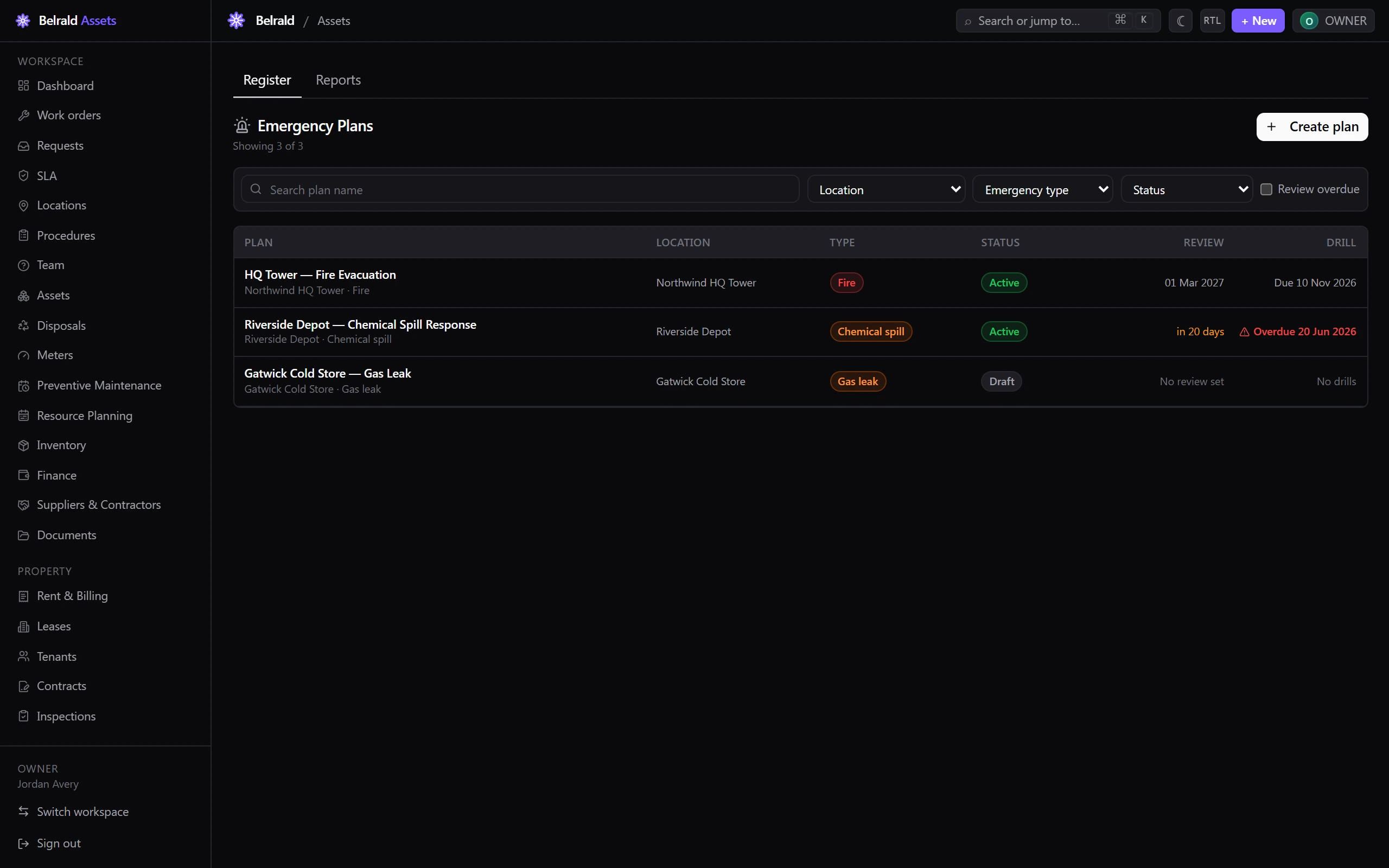
Create a plan
Section titled “Create a plan”- Go to Emergency Plans and select Create plan.
- Enter the Plan name and choose the Location it protects.
- Choose the Emergency type — Fire, Medical emergency, Chemical spill, Natural disaster, Security threat, Gas leak, Power failure, Flood, Evacuation or Other.
- Set the Review cycle — Annual or Biannual — and a Next review date.
- Pick the Evacuation procedure. Only Module 7 procedures of kind safety briefing that are enabled for emergency plans appear here.
- Optionally attach the Signed ERP document.
- Save the plan.
Name, location and emergency type are required to save; everything else can be filled in as you build the plan out.
Build out the plan
Section titled “Build out the plan”A plan is only as good as its contents. Add each section from the plan form or by editing the plan later:
- Assembly points — a name, a description, and the areas each point is the primary muster for.
- Emergency contacts — name, role (Fire warden, First aider, Incident commander, Security, Emergency services, Management or Other), phone, an alternate phone, and a coverage area.
- Warden map — for each area, the primary warden and an optional deputy.
- Hazardous substances — name, quantity, location area and an emergency procedure.
- External services — the fire brigade, ambulance, police, poison control and utility emergency numbers.
Publish the plan
Section titled “Publish the plan”A plan starts as a Draft. Before it can be made Active, it has to pass the readiness gate — the publish gate on the plan shows what’s still missing:
- At least one assembly point
- At least one emergency contact
- An evacuation procedure selected
Once readiness passes, use Make active. Only transitions allowed by the fixed lifecycle are offered, so you move the plan through Change status and can’t skip a step.
Run drills
Section titled “Run drills”Rehearse the plan and record what happened with Record drill.
- Choose the Drill type — Announced, Unannounced or Tabletop.
- Set Conducted at — this is required.
- Record the Participant count and the Evacuation time in minutes — the headline KPI, shown large in the drills panel.
- Log any Issues with a severity (No issues, Minor, Moderate, Major or Critical). Moderate and above are flagged for follow-up.
- Add Corrective actions, a Next drill due date, and any Attachments — photos or a report.
- Save the drill.
The drills panel lists drills newest first, leading with the evacuation time so you can see the trend at a glance.
Activate the plan in an emergency
Section titled “Activate the plan in an emergency”When a real emergency happens, open the plan and select Activate. A plan must already be Active to be activated — publish it first.
- Describe What is happening — this is required.
- Add the Affected areas and, if known, the Casualties (a count and a severity).
- Confirm with Activate now.
Emergency contacts are notified by push and SMS, and a live-activation banner appears on the plan. When the emergency is over, Deactivate from that banner: record the Lessons learned (required) and any final casualties.
Statuses to expect
Section titled “Statuses to expect”Draft → Active → Under review, with Active or any status able to move to Archived. Archived is terminal — an archived plan can’t be reactivated.
Who can do what
Section titled “Who can do what”Owners and admins do everything. Managers run the register end to end but can’t hard-delete a plan. On-site technicians get the Activate and Record-drill controls but read-only content. Members and viewers are read-only.
Report on readiness
Section titled “Report on readiness”Reports carries the account rollup — drills overdue, reviews overdue, and total plans with a status breakdown — plus lists of the plans whose drills are overdue and whose reviews are due or overdue. Each row links straight to its plan.
Was this page helpful?
Thanks — your feedback helps us improve these guides.