

Register and manage cryptographic keys
The cryptographic-key inventory records metadata only about the keys that protect your data — their algorithm, what they protect, who holds them, and when they must rotate. It never stores key material. Each entry carries its custodians, its rotation schedule and its lifecycle history so you can evidence PCI-DSS v4.0 Req 3.7.
Find it under Governance → Cryptographic Keys. The desk has three tabs: Inventory, Rotation due and PCI.
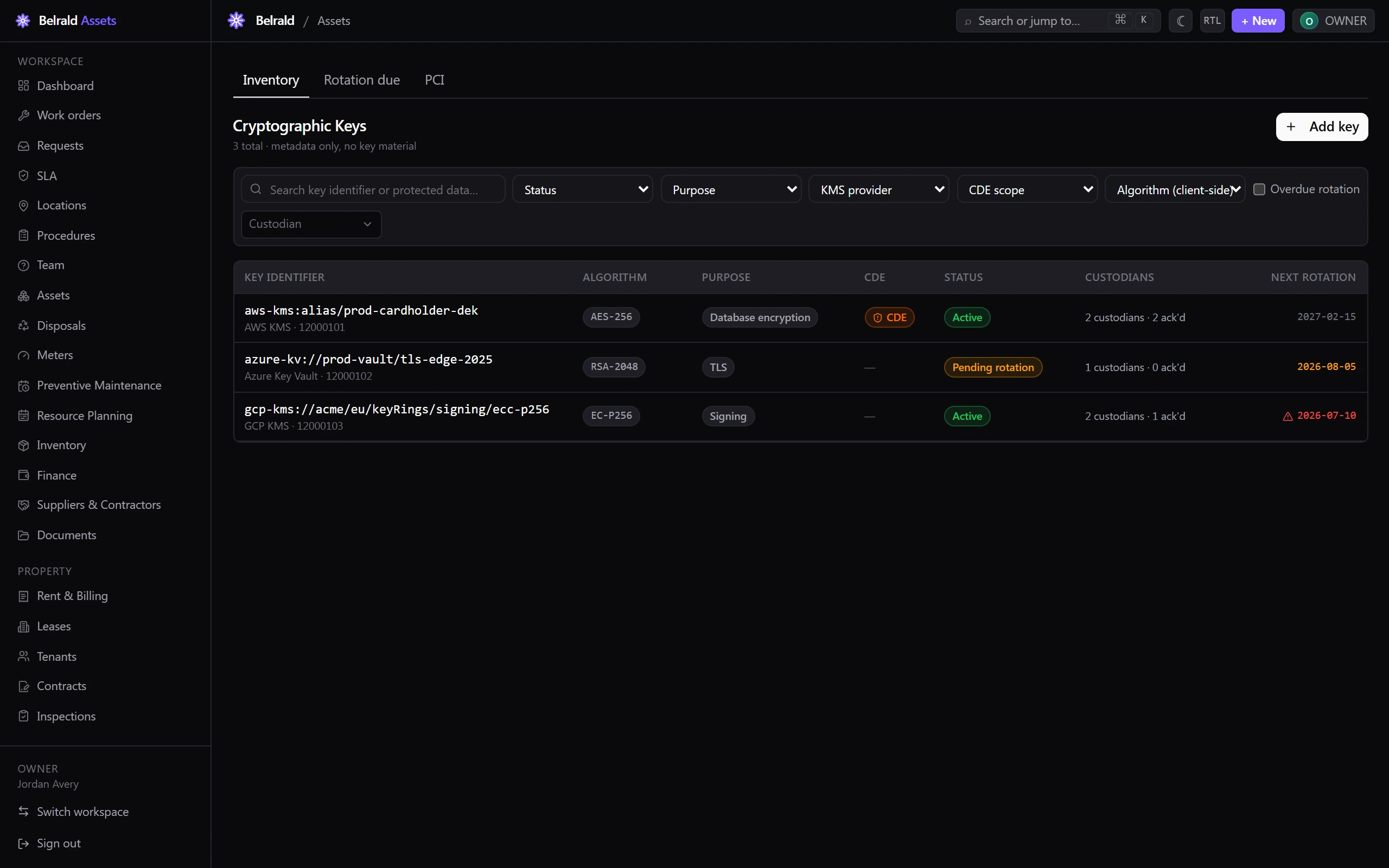
Register a key
Section titled “Register a key”- On Inventory, select Add key.
- Enter the Key identifier — a KMS reference or alias, for example
aws-kms:alias/prod-cardholder-dek. Not the key itself. - Choose the Algorithm — AES-256, RSA-2048, RSA-4096, EC-P256, EC-P384, HMAC-SHA256 or Other.
- Choose the Purpose — Data encryption, Key encryption, Signing, Authentication, TLS, Database encryption or Backup encryption.
- Choose the KMS provider — AWS KMS, Azure Key Vault, GCP KMS, On-prem HSM or Software keystore.
- For an On-prem HSM, select the HSM asset that hosts the key. It is required for on-prem keys.
- Add a Protected data description — what this key protects.
- Set the Cryptoperiod (days) — how often the key must rotate. The server defaults to 365 days for CDE keys and 730 otherwise.
- Add the Custodians — a team member and a role (Primary, Backup or Split-knowledge holder) for each.
- Save the key.
The identifier, algorithm, purpose and provider are fixed once the key exists. Editing a key later lets you revise the protected-data description and cryptoperiod, and add custodians — custodians are append-only and can’t be removed.
Keys in scope for cardholder data (CDE)
Section titled “Keys in scope for cardholder data (CDE)”Turn on CDE scope for a key that protects PCI cardholder data. A CDE key cannot be activated until it meets all four requirements:
- Split knowledge is on.
- Dual control is on.
- Its cryptoperiod is 365 days or less.
- It has at least two acknowledged custodians.
The form shows a live checklist against these four, and the key’s detail page keeps the same evidence. A CDE key with fewer than two acknowledged custodians is flagged as a coverage gap.
Custodians and acknowledgement
Section titled “Custodians and acknowledgement”Each custodian is a named team member with a role. A custodian confirms their responsibilities by acknowledging the key and attaching a signed acknowledgement PDF (Req 3.7.9).
Only a named custodian of the key can acknowledge it, and only for themselves — open the key and choose Acknowledge custodianship. Acknowledgement is what counts toward a CDE key’s two-custodian requirement.
Rotate a key
Section titled “Rotate a key”Rotation is a two-person ceremony.
- Open the key and select Rotate.
- Choose an Initiator and an Approver — two different custodians of the key (dual control).
- Enter a New key identifier — again, never the key material.
- Choose the Rotation method — KMS automatic or Manual ceremony.
- Optionally attach a ceremony record PDF and add notes.
- Confirm the rotation.
The approver must be a different custodian from the initiator; the desk won’t let you rotate otherwise.
The Rotation due tab lists active and pending-rotation keys due within 30 days, soonest first, and lets you rotate straight from the row. Overdue keys show in red; keys due soon show in amber.
Retire a key
Section titled “Retire a key”Retiring decommissions a key. Open it, choose Retire, and give a reason — it is required. The key stays in the inventory as a historical record but can no longer be rotated or edited.
Mark a key compromised
Section titled “Mark a key compromised”Marking a key compromised is an owner or admin emergency action — managers can’t do it. Open the key, choose Compromise, give a reason, and re-type the key identifier to confirm. This is terminal: the key can no longer be rotated or edited, and its custodians are notified. It cannot be undone.
Statuses to expect
Section titled “Statuses to expect”Active → Pending rotation, then either Retired or Compromised. Retired and compromised are terminal — a key in either state can’t be changed.
PCI key inventory
Section titled “PCI key inventory”The PCI tab is your PCI-DSS v4.0 Req 3.7 evidence for the keys protecting stored account data. It totals your keys, and breaks them down by CDE active, overdue rotation, due soon (30 days) and custodian coverage gaps, plus counts by status and by purpose.
Who can use it
Section titled “Who can use it”Owners, admins and managers run the key inventory. Managers can do everything except mark a key compromised, which is reserved for owners and admins. The lower roles have no access to this inventory.
Was this page helpful?
Thanks — your feedback helps us improve these guides.