

Run an access recertification
Access recertification runs periodic reviews of who can reach what — the
attestations that prove access is still justified. You launch a campaign, it
fans out to the right reviewers, each one confirms or revokes the access in
front of them, and the closed campaign stands as evidence. Every campaign gets a
reference like ACR-0001 and carries its scope, reviewers and decisions with
it.
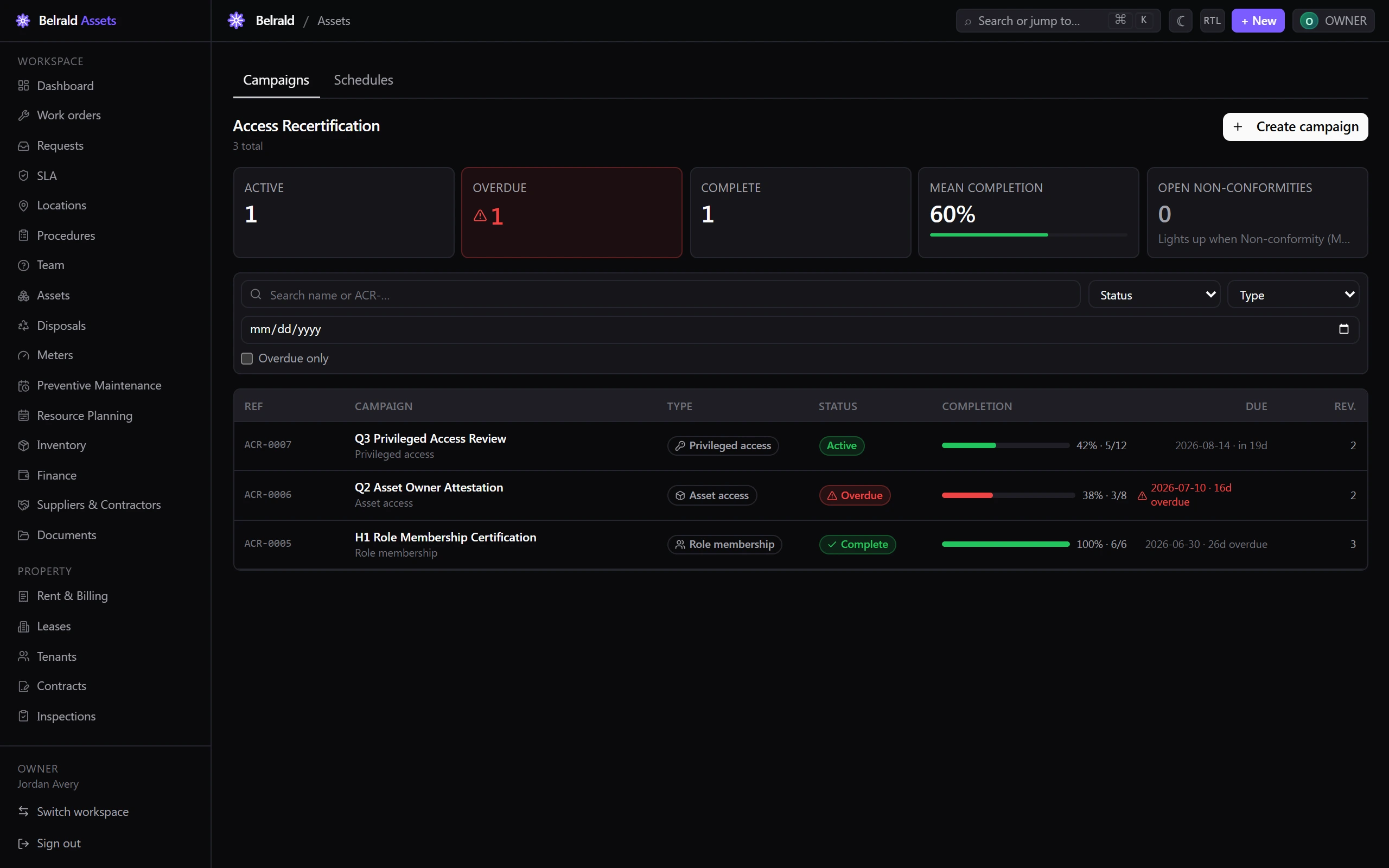
Find it under Governance → Access recertification. The desk opens on Campaigns, with summary tiles for active, overdue and complete campaigns, the mean completion rate, and open non-conformities.
Start a campaign
Section titled “Start a campaign”- On Campaigns, select Create campaign.
- Enter a Name — for example, a quarterly privileged-access review.
- Choose the Campaign type — Asset access, Role membership or Privileged access.
- Set the Scope — depending on the type, this can include assets, asset domains, a classification, role keys and locations. The scope decides which people and access land in the review.
- Choose the Reviewer rule — Account admin, Direct manager or Asset owner. This decides who reviews each subject.
- Set the Due date — it must be in the future — and, optionally, how many reminder days ahead reminders go out.
- Leave Launch immediately off to save a draft you can launch later, or turn it on to open the campaign the moment it is created.
- Select Create campaign.
Launch it
Section titled “Launch it”A draft campaign notifies no one until you launch it. Open the campaign and select Launch campaign — it moves from Draft to Active and the subjects are shared out to their reviewers. If the scope matched no one, the launch warns you that it will notify no one.
Review access
Section titled “Review access”Reviewing happens in My review — a focused, full-screen surface a reviewer can work through on any device. Open a campaign and select My review, or follow the link from a reminder. You only see the people assigned to you.
For each person, choose one of three decisions:
- Confirm access — the access is still needed.
- Revoke — the access should be removed.
- Needs investigation — it isn’t clear-cut and warrants a closer look.
Use Confirm all to approve everyone at once, then adjust the exceptions.
When you Revoke, pick how the access comes off:
- Full account — removes the person’s entire account access.
- Narrow scope — keeps access only in the locations you choose.
- Transfer assets — moves the asset to a new owner. This option only appears for a subject that carries an asset.
A justification is encouraged on a revoke or a needs-investigation decision — it is optional, but it is what the audit trail reads back later. When you’re ready, submit your decisions and confirm the roll-up of confirms, revokes and investigations.
Track progress and decisions
Section titled “Track progress and decisions”The campaign detail shows a completion ring — how many subjects have been reviewed against the total — alongside the decisions recorded, any remediation, and the subjects themselves. An owner or admin can select Send reminders to nudge reviewers who haven’t finished.
Close or cancel
Section titled “Close or cancel”When every subject has been reviewed, select Close campaign to move it to Complete. If reviews are still outstanding, closing is blocked unless an owner, admin or manager chooses Force close anyway — a deliberate override.
To stop a campaign that should never have run, select Cancel campaign and give a reason — cancelling always requires one.
Statuses to expect
Section titled “Statuses to expect”Draft → Active → Complete. A campaign flips to Overdue once its due date passes while reviews are still open, and Cancelled is a terminal state for a campaign that was stopped.
Schedule reviews to run themselves
Section titled “Schedule reviews to run themselves”Owners and admins can set standing Schedules so campaigns create themselves on a cadence. On the Schedules tab, add a template with a type, a scope, a reviewer rule and a cadence — Monthly, Quarterly, Semi-annual or Annual. Enabled templates auto-create a campaign each cycle at 06:00 UTC, so recurring reviews never depend on someone remembering to start them.
Export evidence
Section titled “Export evidence”Select Export PDF on a campaign to download it as an audit record. Viewers can export even though they don’t run campaigns, so evidence can be handed to an auditor without granting wider access.
Was this page helpful?
Thanks — your feedback helps us improve these guides.