

Track legal and regulatory obligations
The legal register holds every obligation you have to meet — legislation,
regulations, standards, approved codes of practice, contractual terms and
voluntary commitments — with its compliance status, its evidence and its next
review kept alongside it. Each requirement carries a reference you set, a clause
or citation like ISO/IEC 27001:2022 A.5.31.
Find it under Governance → Legal Register. It has two tabs — Register and Gap report — and the register filters by search (reference, title or scope), jurisdiction, category, standard, status and owner.
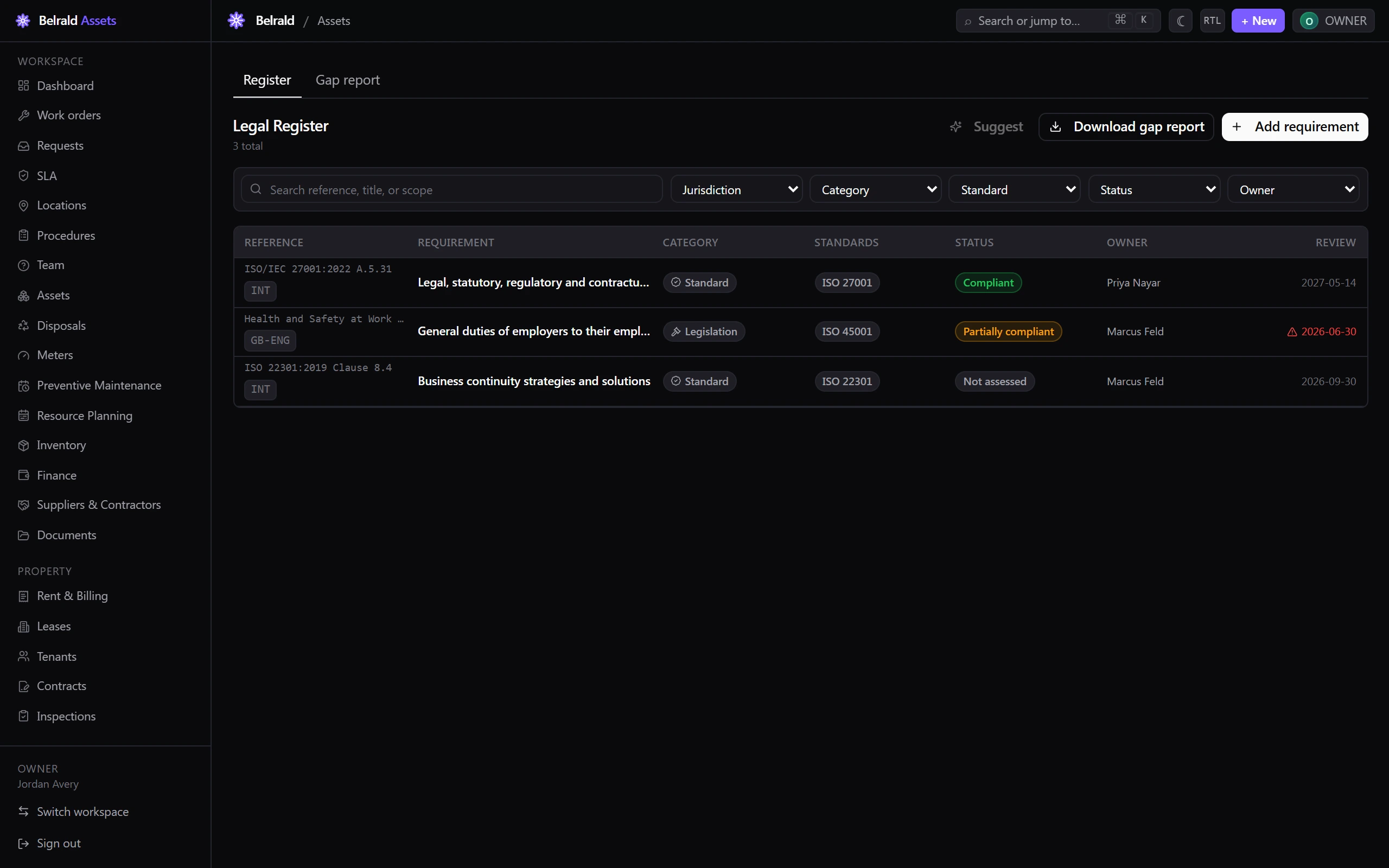
Add a requirement
Section titled “Add a requirement”- Go to Legal Register and select Add requirement.
- Enter the Reference — the clause or citation — and a Title.
- Choose the Category — Legislation, Regulation, Standard, Approved code of practice, Contractual or Voluntary commitment.
- Set the Jurisdiction —
INTfor international, or an ISO 3166-1 code such asNGorGB-ENG. - Describe the Scope — what the obligation covers and where it applies.
- Choose the Owner — the member accountable for it. They must be an active member of the account.
- Tag the Applicable standards it supports — ISO 27001, ISO 45001 or ISO 22301.
- Set the Compliance status and record the Evidence.
- Link any Certifications, Risks, Non-conformities and Module references.
- Set the Effective date, and a Next review date if you don’t want the default.
- Add Notes and Attachments, then save.
If a requirement with the same reference already exists in that jurisdiction, you are warned — view the existing one, or Save anyway if it is genuinely separate.
Set the compliance status
Section titled “Set the compliance status”Every requirement holds one status — Compliant, Partially compliant, Non-compliant, Not assessed or Not applicable.
Two of them need backing, and Save is blocked until you give it:
- Compliant needs evidence — evidence text, a linked certification, or a module reference.
- Not applicable needs a rationale in the Notes.
Hold a review cadence
Section titled “Hold a review cadence”Each requirement carries a Next review date. When it passes, the review is flagged overdue on the register and the detail page — repealed requirements are exempt. Last assessed records when its compliance was last confirmed.
Repeal, don’t delete
Section titled “Repeal, don’t delete”If an obligation is repealed, set a Repealed date rather than deleting it. The requirement stays in the register for audit but drops out of the gap report. The repealed date cannot be before the effective date.
Delete soft-deletes a requirement — it is removed from the register but retained for audit, and cannot be undone from the UI. Only an owner or admin can delete.
Run a gap report
Section titled “Run a gap report”Open the Gap report tab for your compliance coverage:
- A coverage matrix — each standard, plus “No standard”, against every status, with a Gap count per row and a total.
- Gaps by jurisdiction — a tally of open gaps per jurisdiction.
- Open gaps — the requirements that are not compliant or not-applicable and have not been repealed.
Scope it with the Jurisdiction and Standard filters, then Download the full report as CSV or PDF for a certification-body review. You can also download the gap report straight from the register.
Who can do what
Section titled “Who can do what”Owners and admins do everything. Managers run the register but cannot delete. Viewers can read and download the gap report. Technicians and members have read-only access.
Was this page helpful?
Thanks — your feedback helps us improve these guides.