

Set up approvals
Approvals are the one sign-off engine for the whole product. You write a policy — “when the cost is over 500,000, route it to a manager and then to an owner” — and whenever something matching is raised, Belrald Assets opens an approval request and the right people decide it from a single inbox.
Policies can cover work orders, purchase orders, budget changes, requisitions, capital requests, project milestones, disposals and change requests.
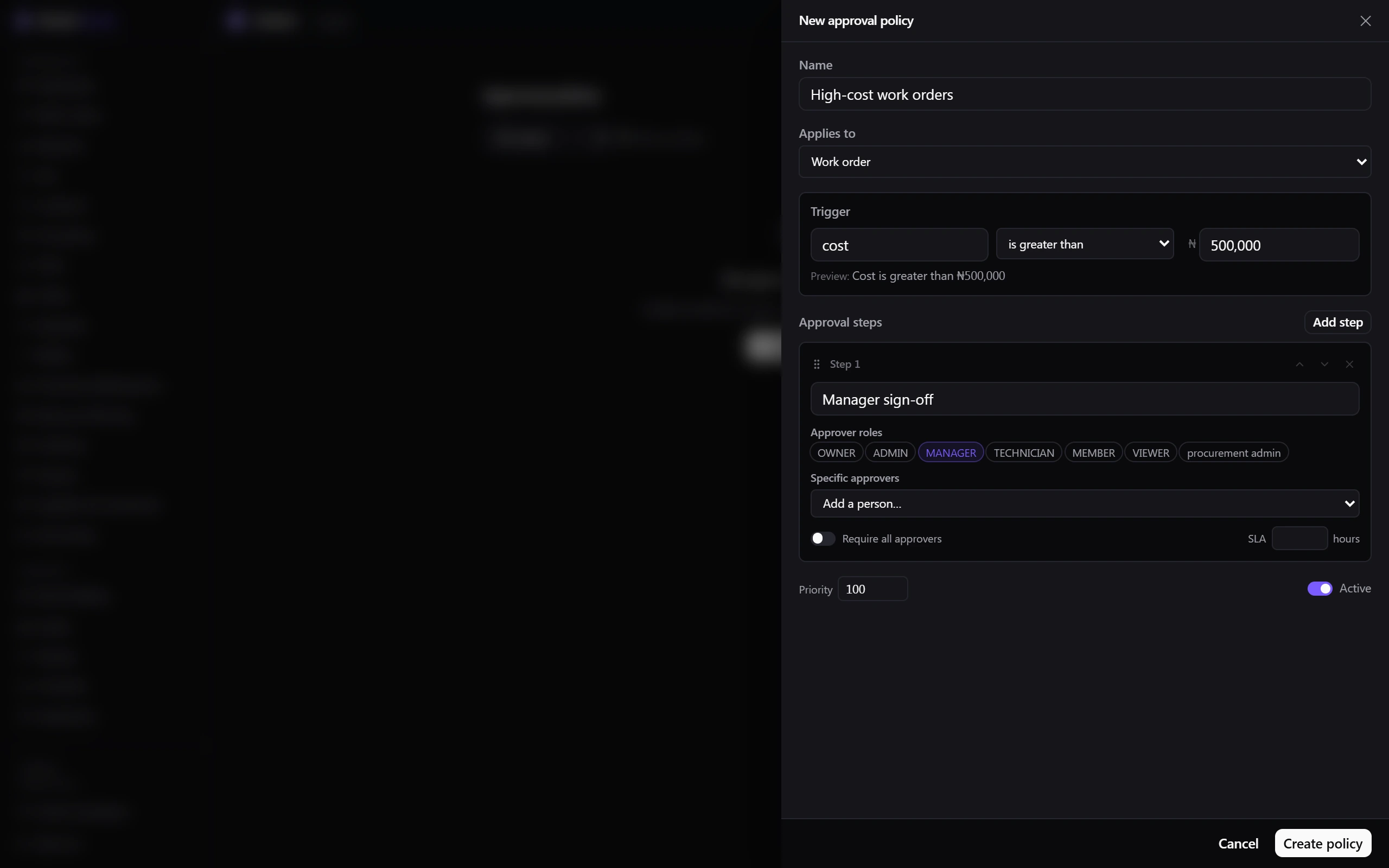
Write an approval policy
Section titled “Write an approval policy”- Go to Settings → Approval policies.
- Create a policy and give it a name.
- Choose Applies to — what kind of item it applies to.
- Set the trigger field — the value the policy watches, such as cost.
- Choose the operator — is greater than, is at least, is less than, is at most, equals, or is not — and enter the value.
- Add the steps, in the order they should happen. For each step choose the approver roles, specific people, or both, and whether any one approver or all approvers must agree.
- Set the policy’s priority. The first matching policy wins.
- Select Create policy.
Decide a request
Section titled “Decide a request”- In the sidebar, select Approvals. The badge shows how many are waiting for you.
- Open My queue and select a request. It shows why it was triggered — the field, the operator and the value that matched.
- Approve or reject it, adding a comment if the decision needs explaining.
If two approvers act at the same moment, Belrald Assets keeps the first decision and asks the second to refresh.
Track everything else
Section titled “Track everything else”All requests shows every request with status and type filters. Statuses are Pending, Approved, Rejected and Cancelled. Cancel a request with a reason when the underlying item is withdrawn.
What happens next
Section titled “What happens next”Approvals never change the item’s status directly. The owning module reacts to the decision — a purchase order becomes issuable, a disposal moves to approved, a budget change is recorded as authorised. If a decision seems to have had no effect, check the item itself rather than the request.
Was this page helpful?
Thanks — your feedback helps us improve these guides.