

Set up notifications and channels
Belrald Assets tells people what needs their attention — a work order assigned, a certificate about to expire, an approval waiting. Admins decide which channels the workspace can use; each person then chooses what they want to hear about.
Channels are in-app, email, SMS, WhatsApp and push.
Enable a channel (admins)
Section titled “Enable a channel (admins)”- Go to Settings → Notifications → Channels.
- Find the channel you want to enable.
- Turn it on.
- Fill in its settings.
- Send a test notification to confirm it arrives.
Choose your own preferences (everyone)
Section titled “Choose your own preferences (everyone)”- Go to Settings → Notifications → Preferences.
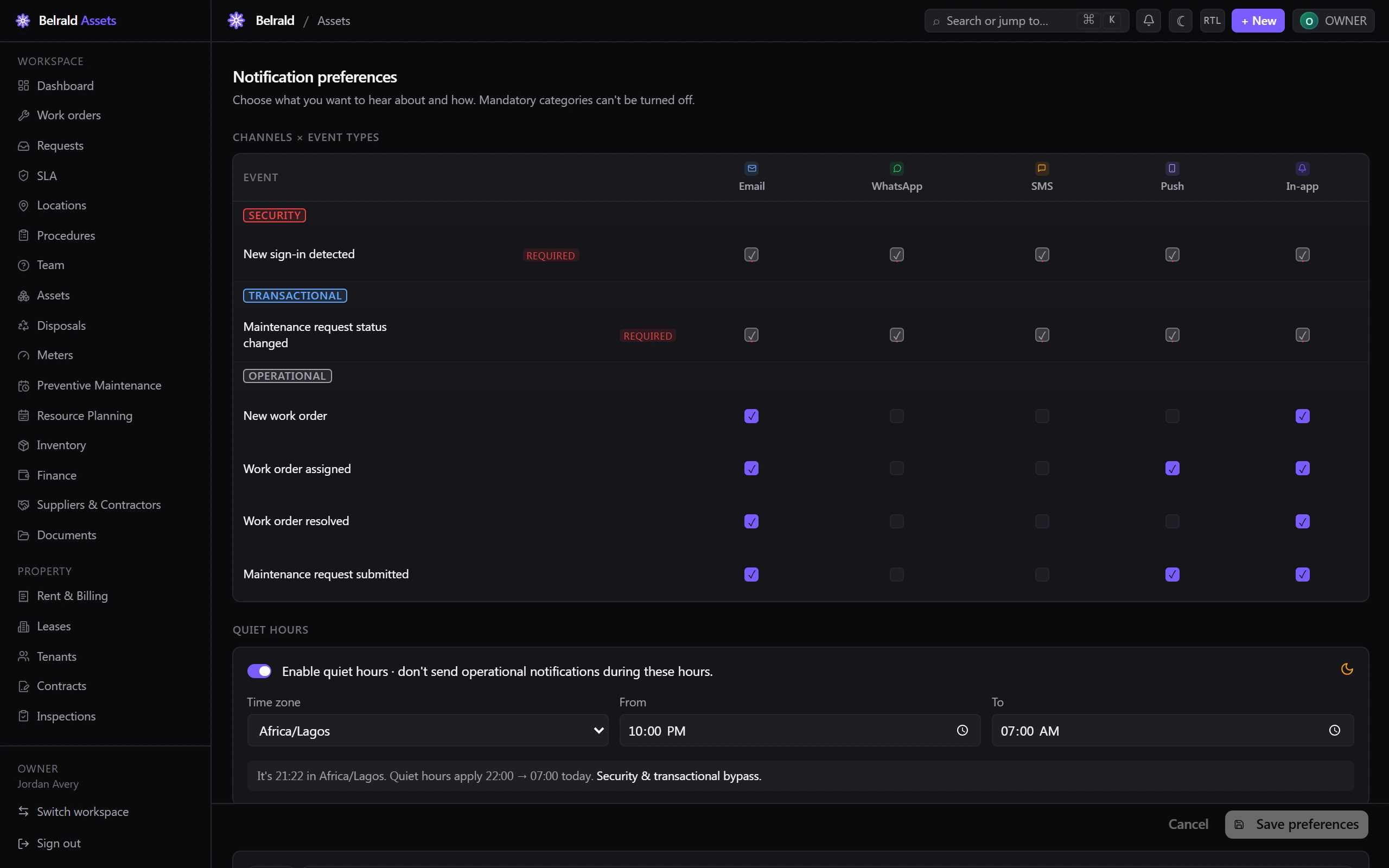
- In the Channels × event types matrix, tick the channels you want for each type of event.
- Set your quiet-hours Time zone.
- Set the From and To times. Notifications hold until quiet hours end.
- If you want SMS or WhatsApp, enter your Phone number (E.164) — for
example,
+2348012345678. Without it, those channels cannot deliver.
Register a device for push
Section titled “Register a device for push”Push notifications need a registered device. Sign in on the mobile app and allow notifications when prompted; manage the list later in Settings → Notifications → Devices and remove devices you no longer use.
Broadcast an announcement (admins)
Section titled “Broadcast an announcement (admins)”Use Broadcast to send an announcement to your workspace — planned downtime, a policy change, a site closure. Broadcasts respect channel availability but are not a substitute for the required security notifications.
Check what was delivered (admins)
Section titled “Check what was delivered (admins)”The Audit view shows delivery outcomes: queued, sent, delivered, failed, skipped or deferred. Start here when someone says they did not get something — “skipped” usually means a preference or quiet hours, while “failed” points at a channel problem such as a missing phone number.
Your inbox
Section titled “Your inbox”Anything sent to the in-app channel also lands in Notifications in the sidebar. Leave in-app switched on even if you turn every other channel off — it is what gives you a history to look back at.
Was this page helpful?
Thanks — your feedback helps us improve these guides.