

Track meters and readings
Also known as: meter, reading, engine hours, odometer.
A meter tracks a running total on an asset — engine hours, kilometres, kWh, water m³, cycles, and more. Recording readings builds a history you can chart, and it lets Belrald Assets raise preventive maintenance when usage passes an interval you set.
Follow these steps to create a meter and keep its readings up to date.
Create a meter
Section titled “Create a meter”- In the sidebar, select Meters.
- Select New meter.
- Choose the Asset the meter belongs to. Each meter tracks one asset.
- In Name, describe what you’re counting — for example, “Engine hours”. Names are unique per asset and can be up to 120 characters.
- Pick the Unit — hours, km, kWh, litres, cycles, m³, or a plain reading.
- Set the Aggregation:
- Cumulative — an ever-increasing total, like an odometer or hour meter.
- Rate — a value that stands on its own each time, like a daily figure.
- Optionally add Notes and one or more Thresholds (a key, a comparator, and a value).
- Select Create meter.
Record a reading
Section titled “Record a reading”- Open the meter and select + Record reading.
- Enter the Value. For a cumulative meter, the sheet shows the last reading and a step suggestion so you can sanity-check the jump.
- Leave Recorded at on now, or back-date it — you can back-fill up to seven days.
- Add an optional Note, then select Record reading.
Read the reading history
Section titled “Read the reading history”The meter’s detail page keeps two views:
- Chart — a Reading history line chart with 30d, 90d, and 365d ranges, plus a usage-rate summary.
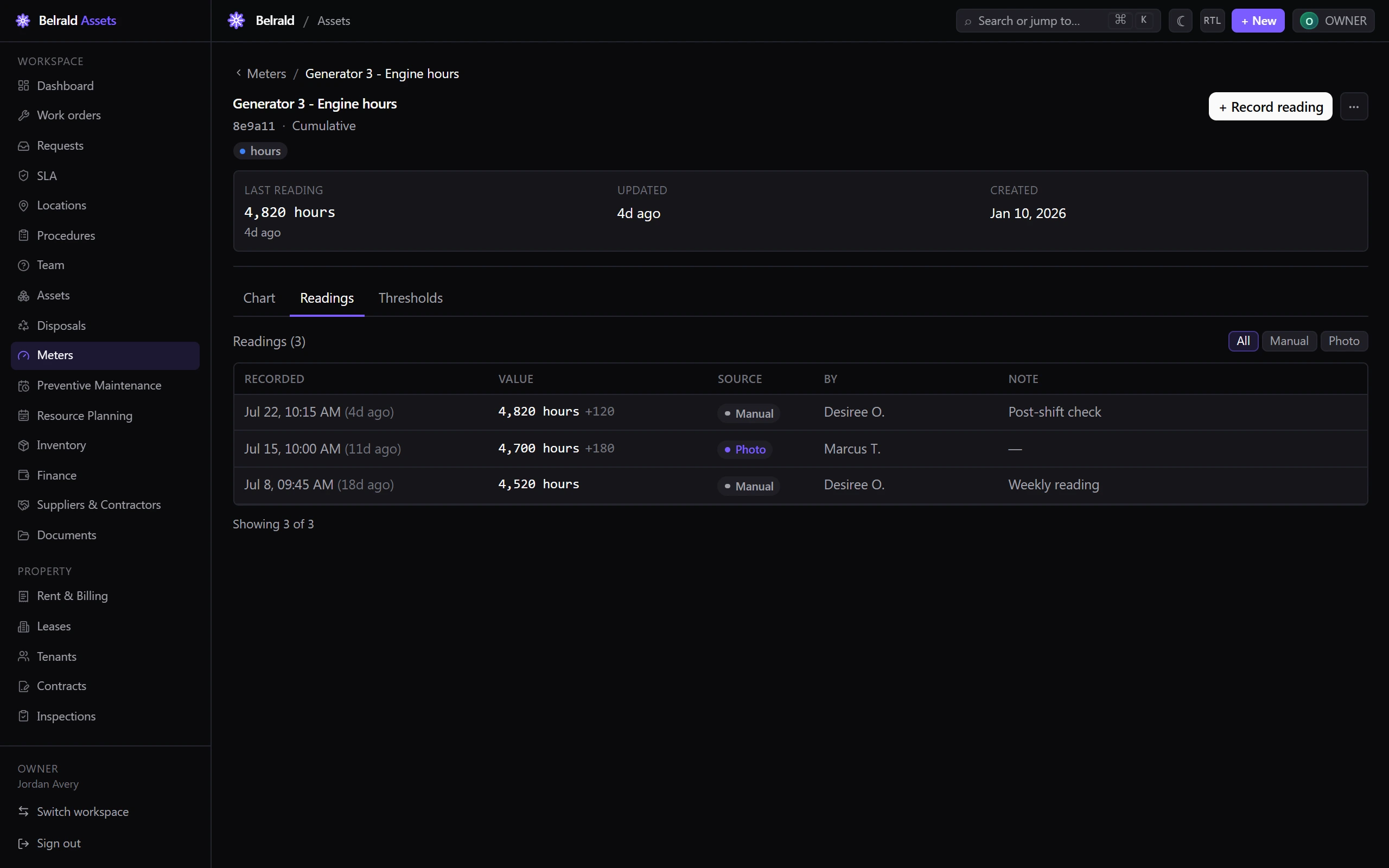
- Readings — every reading in a table, with Recorded, Value, Source, By, and Note columns. Filter by source (All, Manual, Photo) and use Load more to page through older readings.
Readings from a photo carry a Photo source tag; forced rollovers carry a Rollover tag so corrections stay visible.
Trigger maintenance from a meter
Section titled “Trigger maintenance from a meter”Meters are how usage-based preventive maintenance fires. When you set up a PM schedule, choose the Meter trigger, pick the meter, and set the interval — Belrald Assets raises the next work order each time the reading passes that mark. See Schedule preventive maintenance for the full flow.
Archive or delete a meter
Section titled “Archive or delete a meter”Use the actions menu (⋯) on the meter to Edit, Archive, or Delete it. Archiving is reversible — an archived meter hides from the active list until you Restore it, and archiving an asset archives its meters too. Deleting soft-removes the meter; it leaves the catalogue but stays in the audit log. What you can do depends on your role — everyone except viewers can record readings, while creating, editing, and archiving meters is for managers and admins.
Was this page helpful?
Thanks — your feedback helps us improve these guides.